
If your WordPress site goes offline, every minute costs you lost sales, missed leads, and a dent in visitor trust. Search engines may start flagging errors, and customers see a blank page instead of your business. In that moment, the pressure is real:
What broke, and how do you get back online before the damage adds up?
The good news is that most WordPress outages are fixable. In most cases, your site isn’t lost, it’s blocked by something like a plugin conflict, server hiccup, database error, expired domain, SSL problem, sudden traffic spike, or malware infection.
In this post, we’ll cover how to troubleshoot a down WordPress site, starting with the quick checks that rule out the obvious, then moving step by step through plugins, themes, server settings, security, and backups.
Why is my WordPress site down?
A WordPress site can go down for several common reasons:
- Plugin or theme conflicts after an update
- Server overload from high traffic, bots, or limited hosting resources
- Database connection errors caused by bad credentials or database failure
- Expired domain registration, DNS problems, or SSL certificate issues
- PHP memory exhaustion or incompatible PHP versions
- Malware, redirects, spam injections, or host suspension
- Broken core files after an incomplete update
Most of these problems can be reversed. The key is to stay calm, confirm how widespread the outage is, and work from the outside in, starting with what’s visible to visitors and moving inward to the technical details.
Phase 1: quick verification checks
Before editing files or disabling plugins, confirm that the site is actually down for everyone. Sometimes the problem is local: a browser cache issue, a DNS resolver problem, a firewall block, or a temporary connection failure from your network.
Begin with the checks that take seconds. These quick wins can save you from hours spent digging through server files or making changes that don’t address the real problem.
Is it down for everyone or just you?
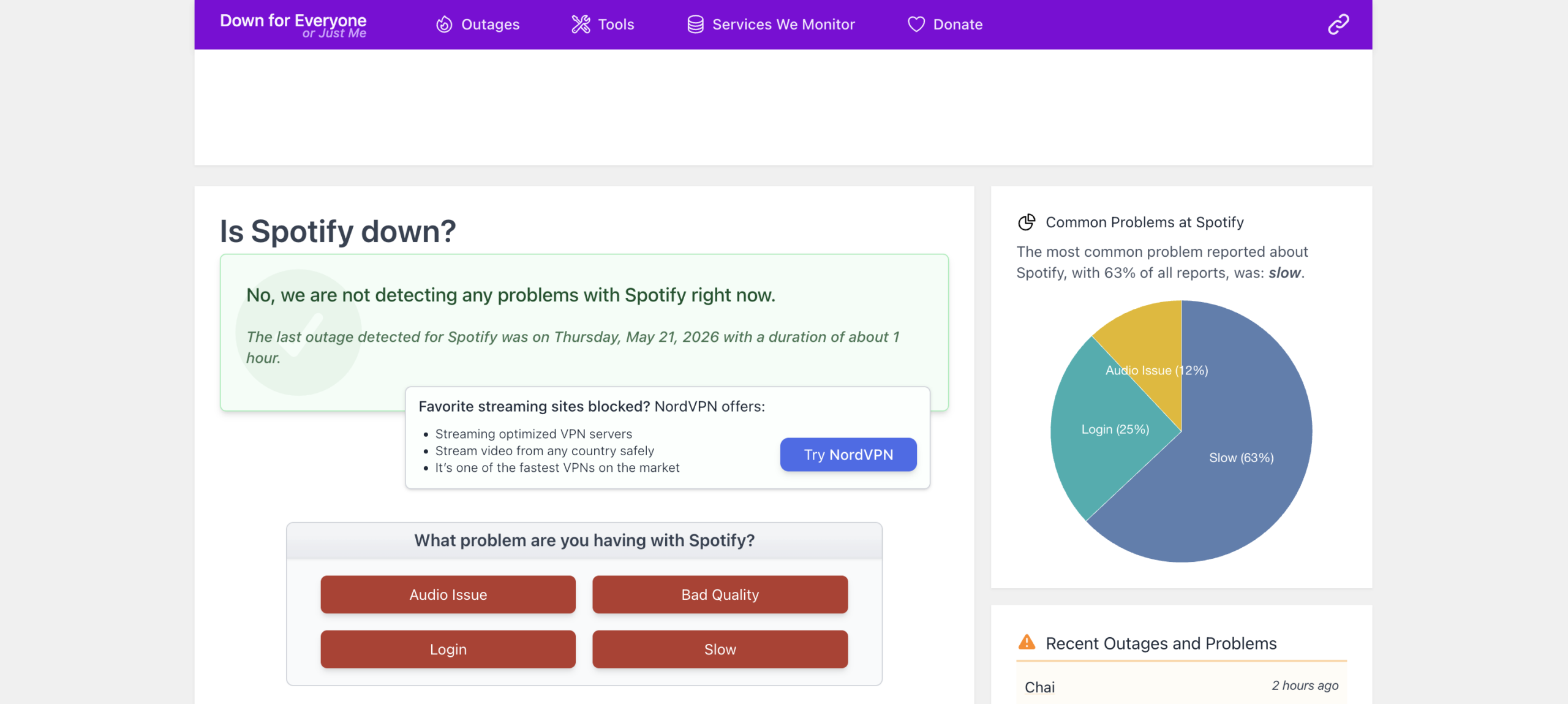
Open a site availability checker like Down For Everyone Or Just Me and enter your domain. If the tool says the site is reachable, the problem may be limited to your browser, device, network, or location.
Next, try the site in an incognito/private window. Then clear your browser cache, test another browser, and check from your phone using mobile data instead of Wi-Fi. If the site loads from one connection but not another, you may be dealing with a local cache, DNS, or IP-blocking issue rather than a full outage.
Check your host’s status page
If the site is down globally, check your hosting provider’s status page before changing anything. Hosts occasionally experience outages, emergency maintenance, network problems, storage failures, or control panel disruptions.
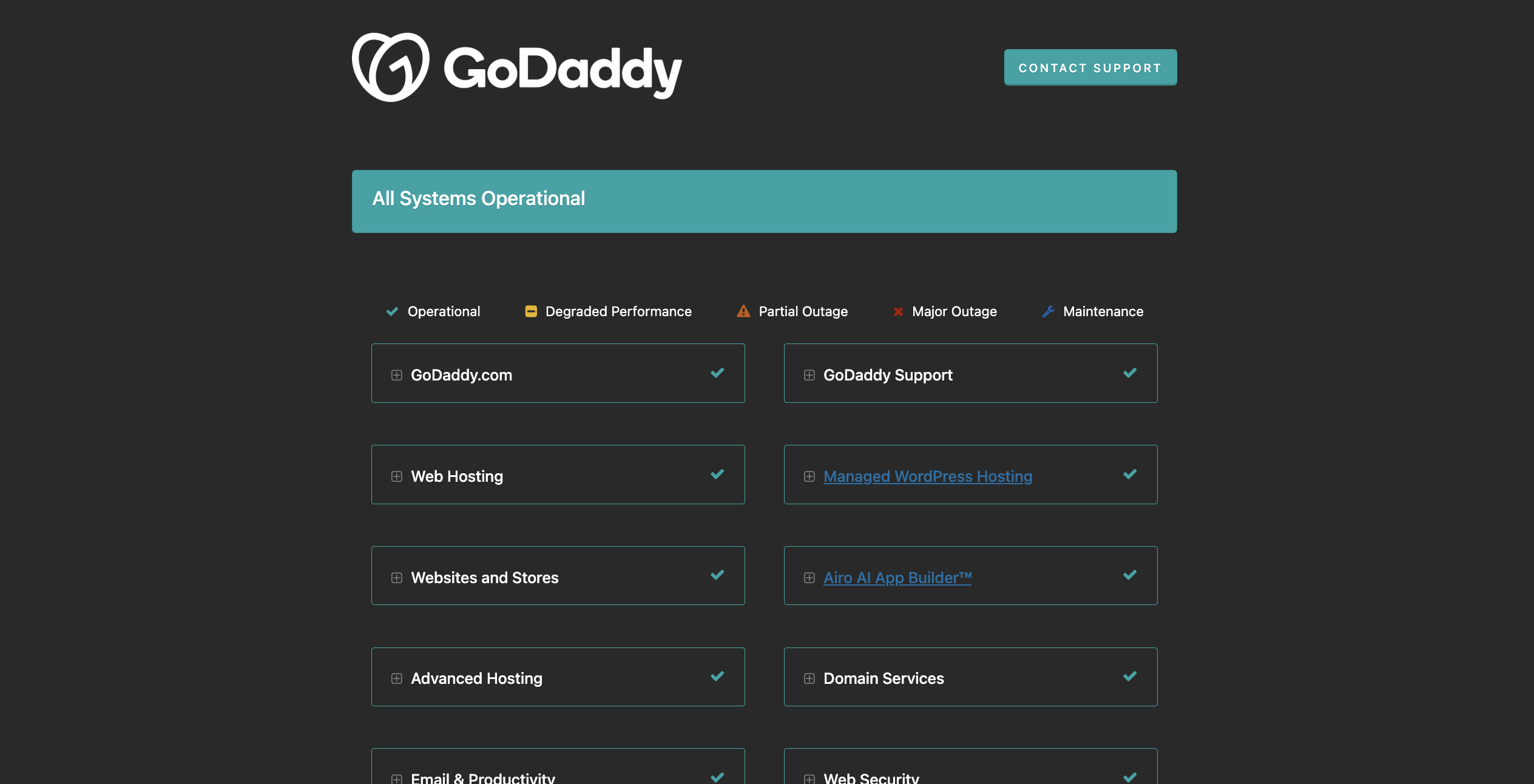
Check for recent updates from your host’s status page, support portal, email, or social media. If the outage is on their end, the fastest path to recovery is often opening a support ticket and waiting for their fix, rather than making risky changes to your WordPress files.
Verify domain, DNS, and SSL
Connectivity problems can look exactly like WordPress problems, even when WordPress itself is fine.
First, confirm that your domain registration has not expired. You can check this through your registrar account or by running a WHOIS lookup. In the WHOIS record, look closely at the expiration date and domain status fields. If the expiration date has passed, the domain may stop resolving or display a registrar parking page instead of your site.
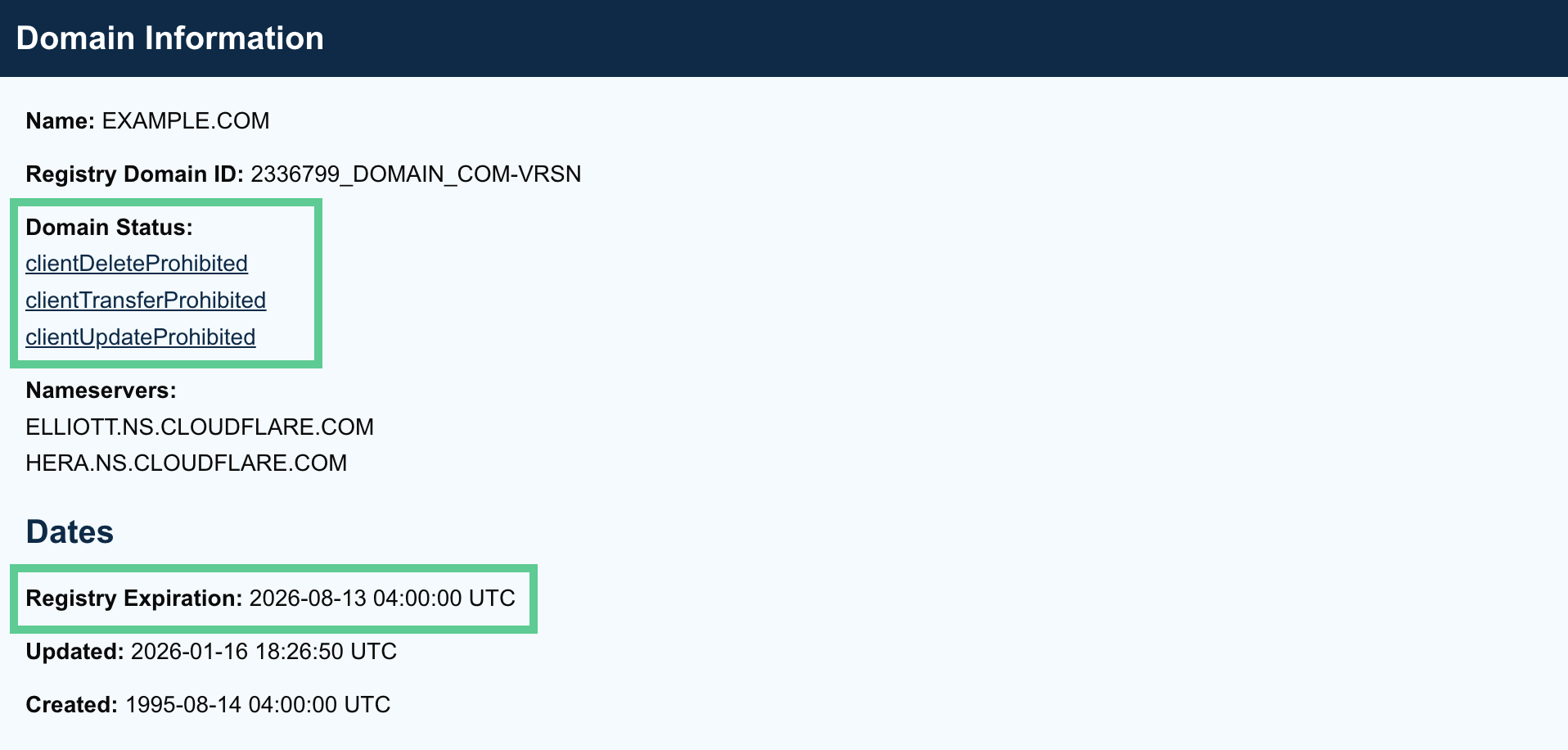
The domain status can also explain sudden downtime. Statuses like expired, redemptionPeriod, pendingDelete, or similar notices usually mean the domain has lapsed and may be in a recovery or deletion process. Statuses such as clientHold or serverHold can prevent the domain from resolving at all, which makes the website appear offline even if your hosting account is working normally. If you see one of these statuses, contact your registrar immediately to renew, recover, or remove the hold.
If you confirm your domain is active and in good standing, move on to checking your DNS. Start by confirming the domain’s nameservers, since they determine where the authoritative zone file lives. You can often verify the assigned nameservers in the same WHOIS lookup used to check the domain’s registration status. Make sure the nameservers match the DNS provider you expect.

Then check the domain’s A record (and/or CNAME) to confirm it resolves to the correct server IP address. If the nameservers point to the wrong provider, your A record changes may be made in the wrong DNS zone and never affect live traffic. If the A record points to an old server, incorrect IP, or does not resolve at all, visitors may see connection errors even though WordPress itself is intact.
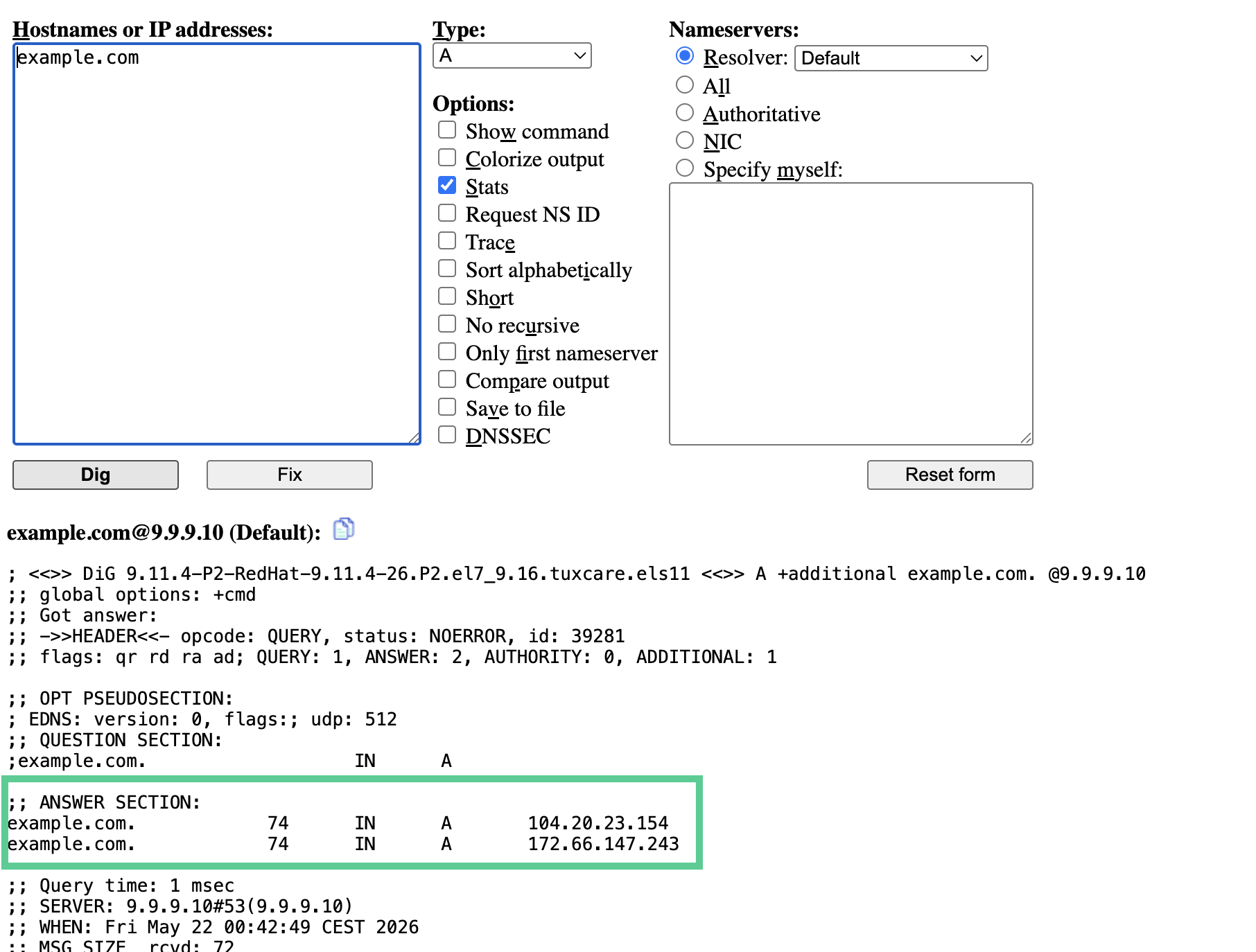
If you recently migrated hosts, changed nameservers, updated A records, or moved through a CDN, DNS propagation can cause some visitors to reach the new server while others still hit the old one. This usually settles, but incorrect records can keep a site offline indefinitely.
Finally, review your SSL certificate. An expired or misconfigured certificate can trigger browser warnings that scare visitors away or block checkout pages.
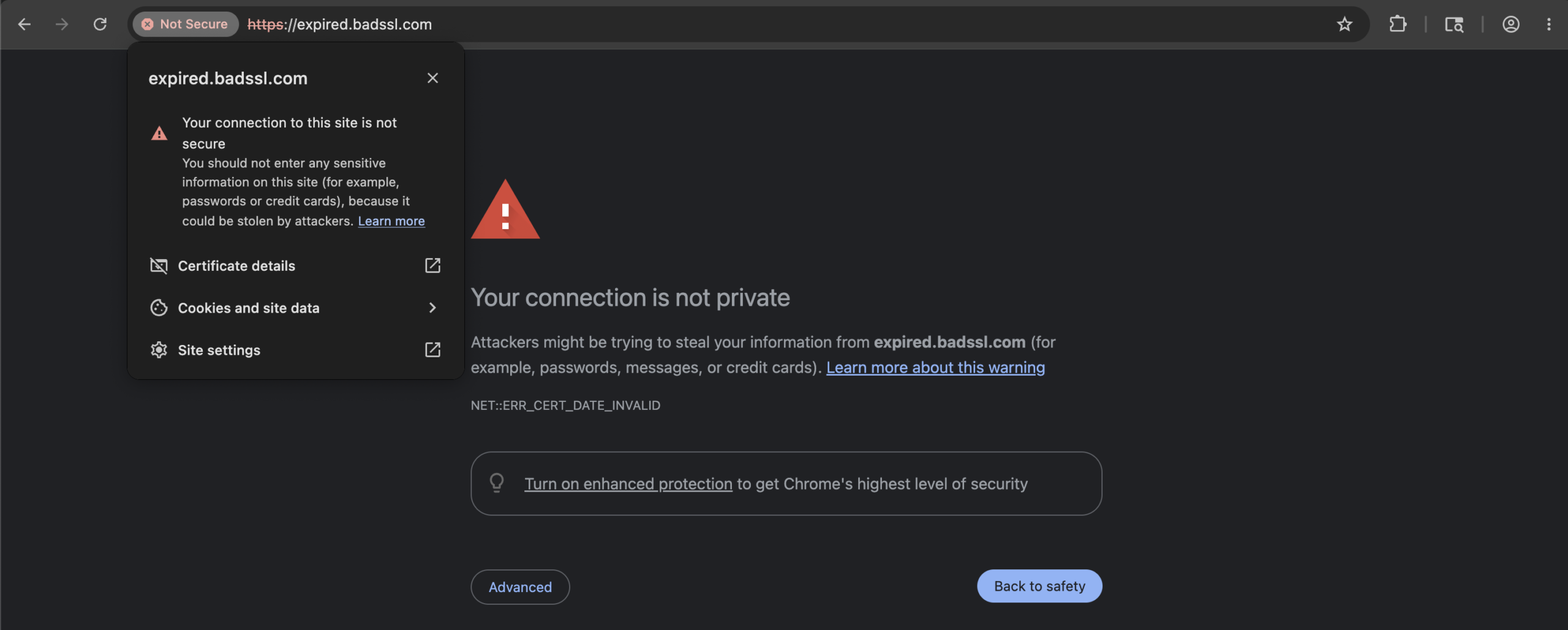
In your hosting panel, CDN dashboard, or certificate manager, confirm that SSL is active, valid, and mapped to the right domain.
Look at traffic patterns
A sudden traffic spike can overwhelm a WordPress site, especially on shared hosting or underpowered VPS plans.
Open your host’s analytics panel, CDN dashboard, or server monitoring tool and look for unusual activity. A large spike could be good news, such as a viral post or successful campaign. It could also be a bot flood, brute-force attack, scraper surge, or DDoS attempt.
If you see a sharp traffic spike before the outage, focus on server resources, caching, rate limits, and firewall protection. Sometimes the problem is simply too many requests for your server to handle, whether from real visitors or automated bots.
Phase 2: fix plugin and theme conflicts
Outdated, incompatible, or poorly coded plugins and themes are among the most common causes of WordPress downtime. They often trigger the “White Screen of Death,” fatal errors, broken layouts, or the dreaded “There has been a critical error on this website” message.
If your site crashed right after an update, this is where to focus. Updates are a common trigger for plugin and theme conflicts.
Deactivate plugins methodically
If you can still access /wp-admin, go to Plugins > Installed Plugins. Select all plugins, choose Deactivate from the bulk actions menu, and apply the change.
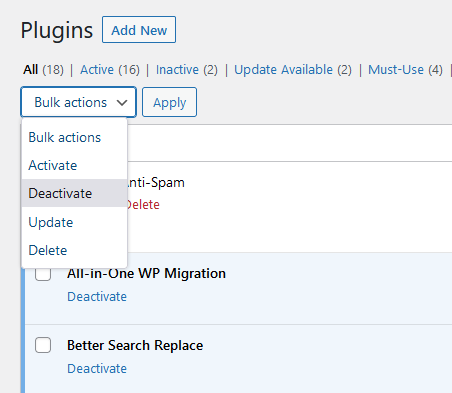
Then reload the site.
If the site comes back online, one of the plugins is likely responsible. Reactivate plugins one at a time, checking the front end after each activation. When the site breaks again, the plugin you just reactivated is probably the culprit. Leave it disabled, roll it back, update it, replace it, or contact the developer.
If you cannot access wp-admin, use SFTP, FTP, or your host’s file manager:
- Open your WordPress installation directory.
- Go to
wp-content. - Rename the plugins folder to
plugins_old.
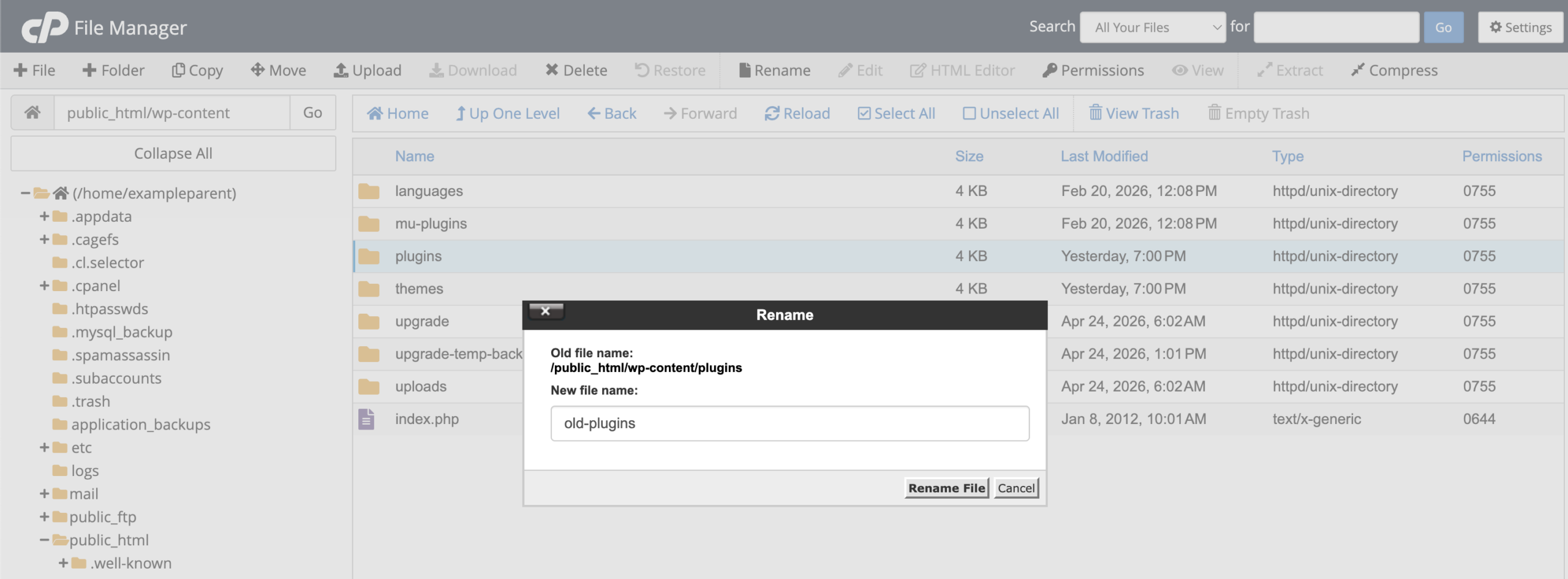
- Reload your site.
This forces WordPress to deactivate all plugins because it can no longer find the plugin directory. If the site loads, rename plugins_old back to plugins, then rename individual plugin folders one by one until you identify the problematic plugin.
This is a diagnostic step, not a permanent fix. Once you’ve found the problem plugin, restore the folder names and address that plugin directly by updating, replacing, or removing it.
Switch themes as a diagnostic step
Themes can also cause fatal errors, especially after PHP, WordPress core, or page builder updates.
If you can access the dashboard, go to Appearance > Themes and activate a default WordPress theme, such as Twenty Twenty-Five or another current default theme installed on your site.
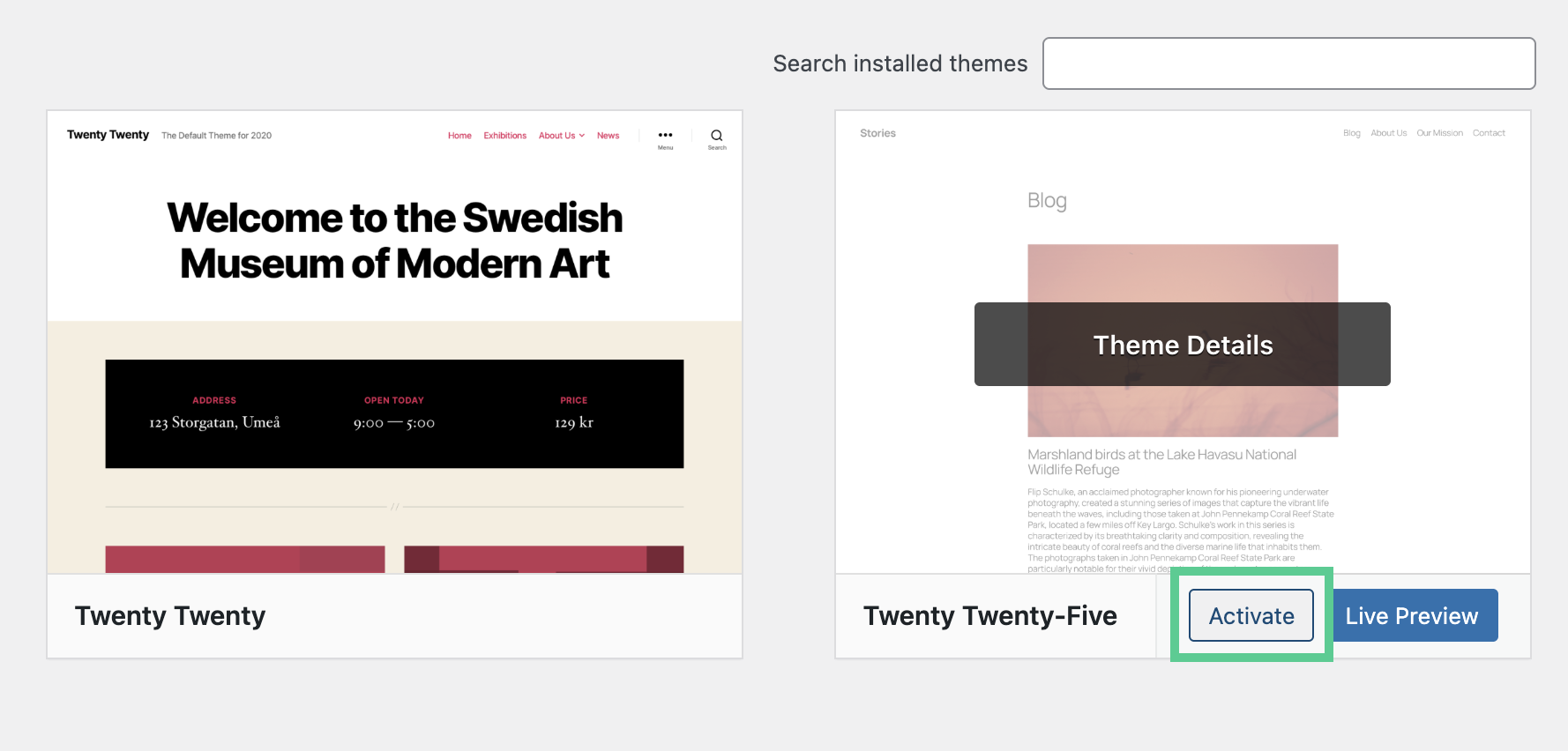
If wp-admin is inaccessible, use SFTP or your host’s file manager. Navigate to wp-content/themes and rename the active theme’s folder (not the main “themes” folder). WordPress will try to fall back to an available default theme. If the site returns, the active theme is likely involved.
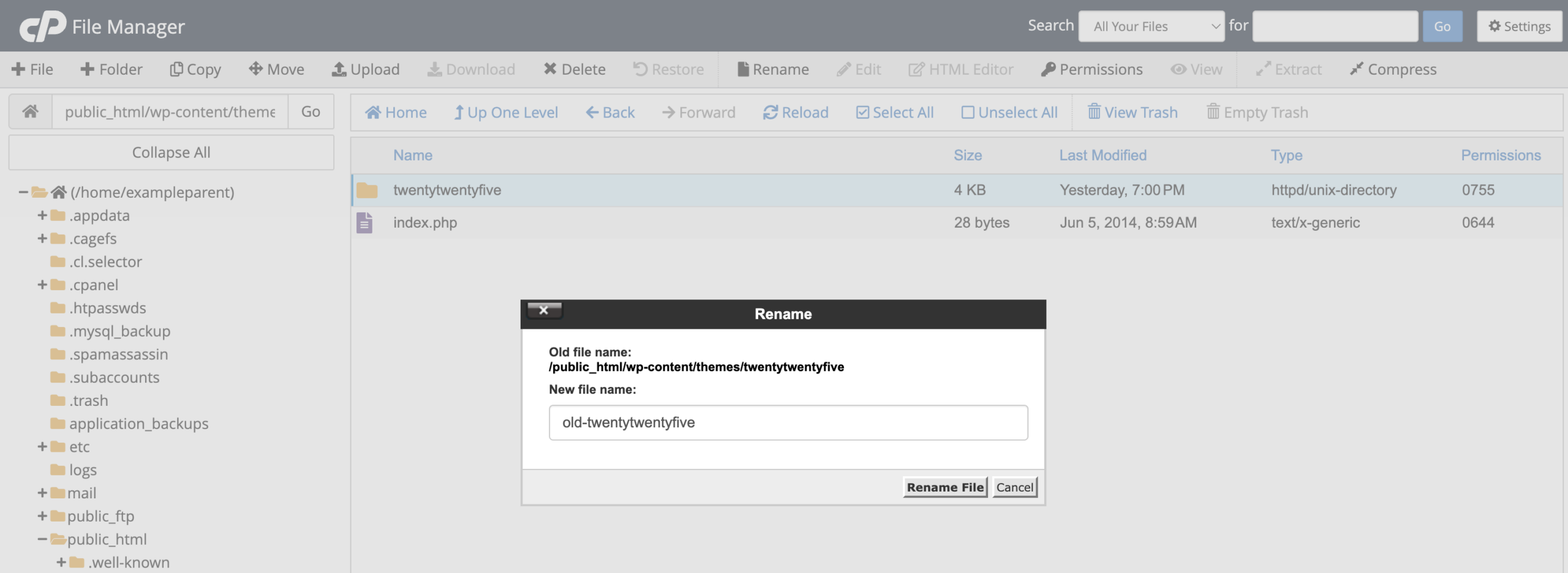
At that point, update the theme, check for errors in custom code, review any recent template changes, or reach out to the theme developer for support.
Phase 3: Resolve configuration and resource issues
If plugins and themes are not the cause, move deeper into WordPress configuration, database access, PHP resources, and rewrite rules.
These fixes are still within reach, but they touch critical files. Always download a backup of any file before you edit it, so you can roll back if something goes wrong.
Fix database connection errors
The message “Error establishing a database connection” usually means WordPress cannot talk to its database.
Open your wp-config.php file and check these values:
DB_NAMEDB_USERDB_PASSWORDDB_HOST
Compare them against the database details in your hosting control panel. A single wrong character in the database name, username, password, or host can break the connection.
This often happens after a migration, password reset, restore, or manual database change. If the credentials look correct but the error remains, ask your host whether the database server is online and whether your database user still has the right permissions.
You can also check whether the database itself is damaged or unavailable from the hosting panel.
Raise the PHP memory limit
A WordPress site can crash when a plugin, theme, import, page builder, or WooCommerce process uses more memory than PHP allows. You may see an error like:
Fatal error: Allowed memory size exhaustedTo raise the WordPress memory limit, open wp-config.php and add this line above the comment that says “That’s all, stop editing!”:
define( 'WP_MEMORY_LIMIT', '256M' );Save the file and reload the site.
If the error persists, your host may enforce a lower server-level limit. In that case, raise PHP memory from the hosting panel or ask support to adjust it. Don’t just set memory limits sky-high. Memory exhaustion can signal a buggy plugin or even attack traffic, so it’s worth investigating what’s using up resources.
Update PHP versions
WordPress depends on PHP, and old PHP versions can cause compatibility, performance, and security problems. A site may break after WordPress core, plugin, or theme updates if the server is running an outdated PHP release.
Check your hosting panel for the PHP version assigned to the site. Use a currently supported PHP 8.x release recommended by WordPress and your host, and avoid legacy PHP versions that have reached end of life. You can review WordPress’s current server guidance on the official WordPress requirements page.
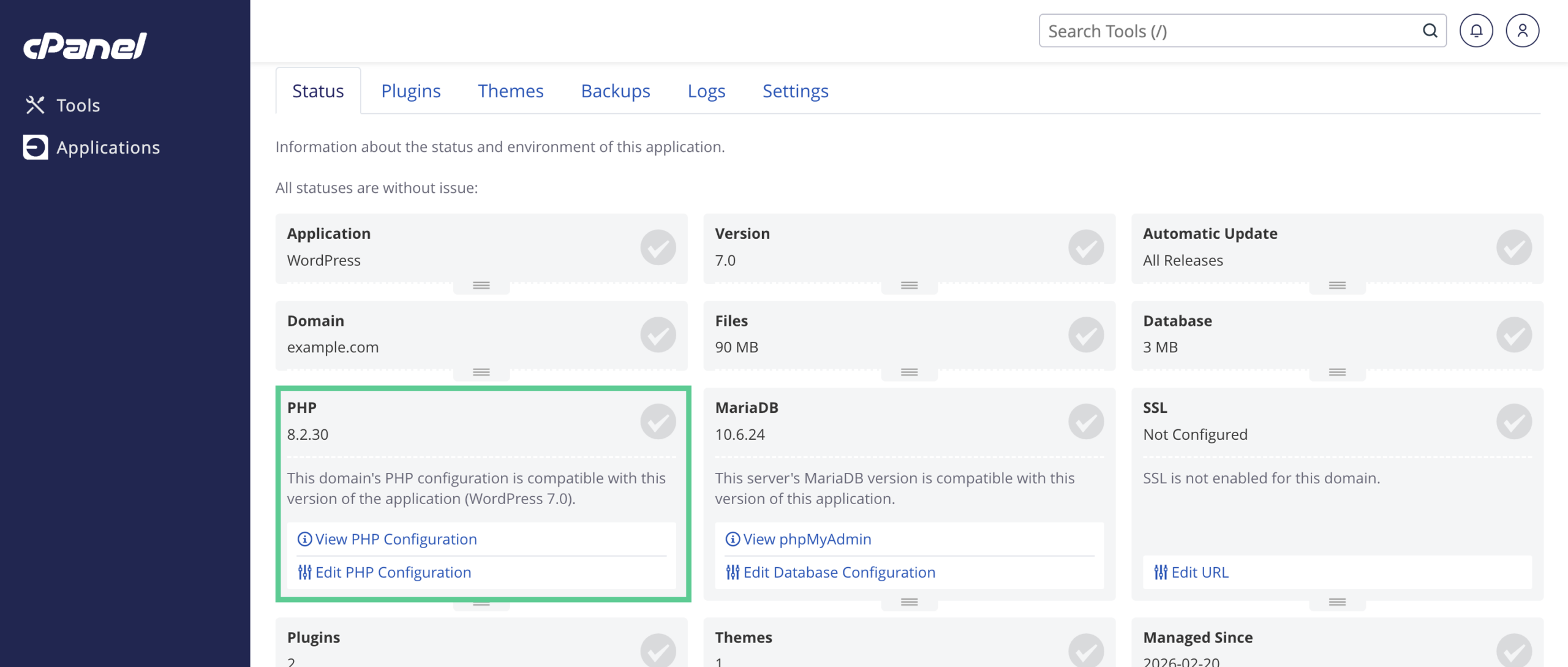
Before changing PHP versions on a live site, make a backup or use a staging environment if you have one. Upgrading PHP can expose outdated plugins or themes that haven’t kept up with recent releases.
Repair broken permalinks
If your homepage loads but posts, pages, or product URLs return 404 errors, your permalink rules may be broken.
Go to Settings > Permalinks in wp-admin and click Save Changes without changing anything. This flushes and regenerates WordPress rewrite rules.
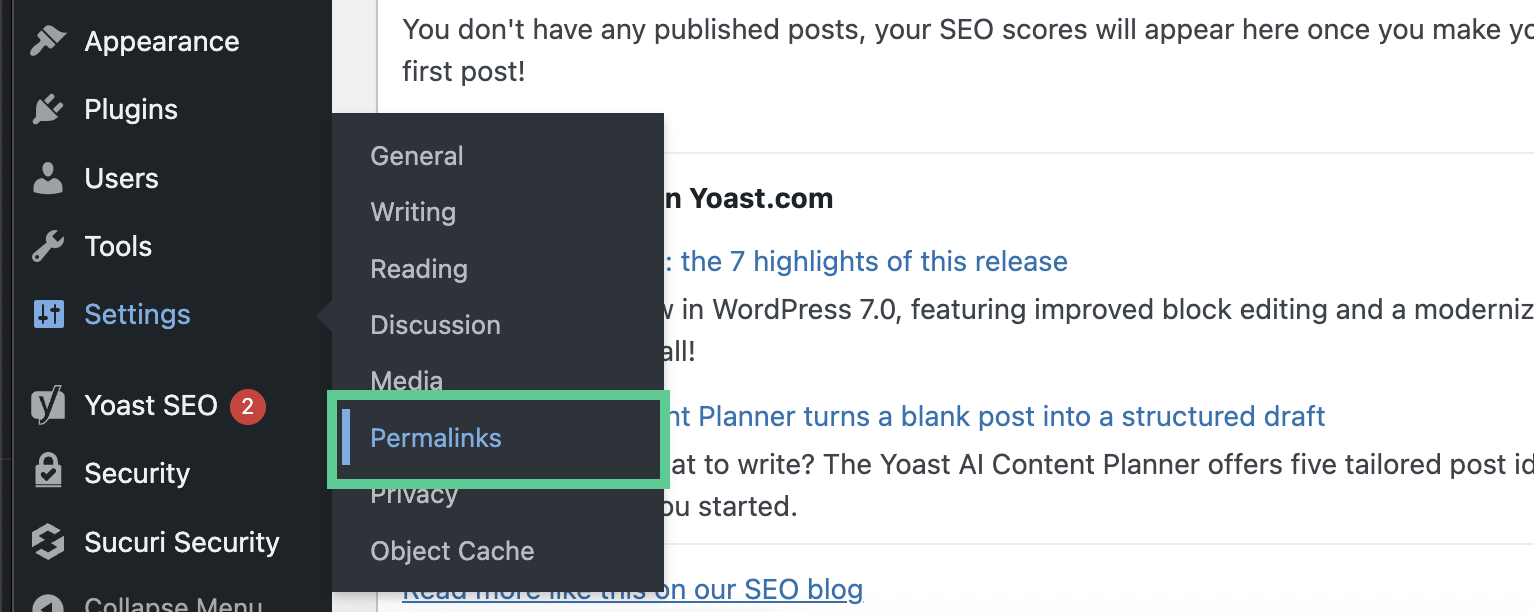
On Apache servers, this also refreshes the .htaccess rules WordPress uses for clean URLs. If you just migrated or changed servers, try this fix early, as it often resolves broken links after a move.
Phase 4: address security breaches and malware
Sometimes a WordPress site goes down because it has been compromised.
Attackers may inject malicious PHP, add redirects, create spam pages, abuse server resources, modify core files, or install backdoors. In other cases, the hosting provider may suspend the account after detecting malware, phishing, spam, or outbound attacks.
Security-related downtime can be messy because the visible symptom is not always the root cause. A blank page, redirect loop, strange pop-up, blacklist warning, or host suspension notice may all point back to the same problem: unauthorized changes on the site.
Identifying and recovering from a hack
Start by scanning the public-facing site with a remote malware scanner such as Sucuri SiteCheck. A remote scanner can help identify known malware, blacklist warnings, injected spam, defacements, and suspicious redirects.
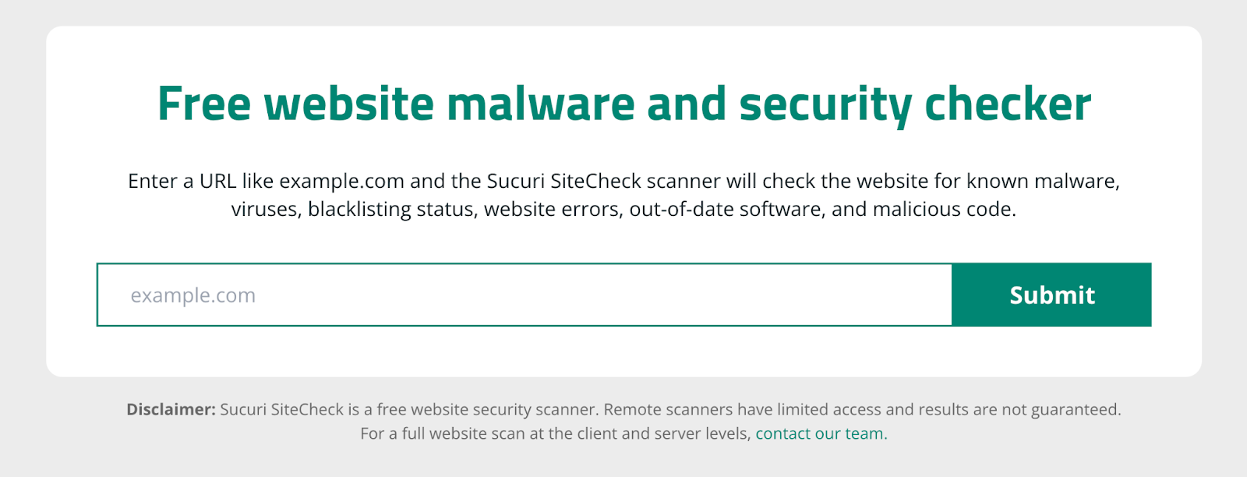
Keep in mind that remote scans cannot see every server-side file, so a clean scan does not always guarantee a clean site.
Next, open Google Search Console and review the Security Issues section. Google may flag hacked content, harmful downloads, phishing, or malware if it detects dangerous behavior on your site.
Then take immediate containment steps:
- Reset all WordPress admin passwords.
- Reset hosting, FTP/SFTP, database, and control panel passwords.
- Remove unknown admin users.
- Update WordPress core, plugins, and themes.
- Replace modified core files with clean copies.
- Review recently changed files for suspicious PHP.
- Check
.htaccess,wp-config.php,mu-plugins, uploads, and theme files for injected code.
If the infection is severe, don’t just delete the obvious malware and call it done. Attackers often leave hidden backdoors so they can get back in later. A thorough cleanup is essential.
A Web Application Firewall can help block malicious traffic before it reaches your site, and a professional incident response team can clean infected files, remove backdoors, and help request blacklist reviews after remediation.
Phase 5: restore from backup
If the site is badly broken and manual troubleshooting is taking too long, restoring from a clean backup may be the fastest path back online.
Choose a backup from before the downtime started. Restoring a backup from after the issue appeared may simply restore the same problem. If malware is involved, go back far enough to avoid restoring infected files.
Check whether you have backups from:
- Your hosting provider
- A backup plugin
- Off-site cloud storage
- A managed WordPress platform
- Manual server snapshots
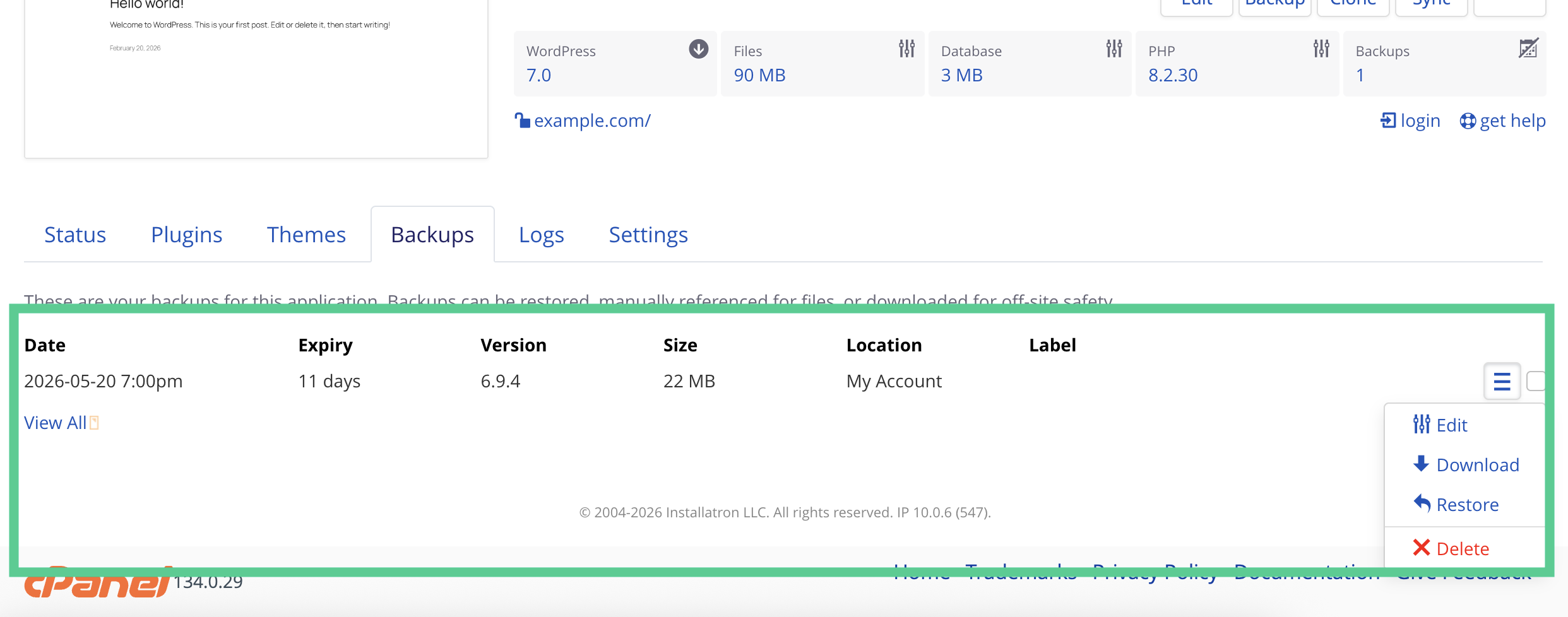
If you do not have a backup system in place, contact your host immediately. Many providers keep daily or weekly backups even if you never configured your own. Ask what restore points are available and whether they can restore files, database tables, or the full account.
After restoring, update any vulnerable software, reset all passwords, and dig into what caused the outage in the first place. A backup gets you online, but it won’t fix the root cause if you don’t address it.
Long-term prevention habits that actually work
Once your site is stable, use the breathing room to put a prevention plan in place. Avoiding downtime is much easier than scrambling to fix it after the fact.

Focus on habits that reduce both breakage and compromise:
- Use a reputable security plugin and a website firewall to reduce malicious traffic, exploit attempts, and brute-force activity.
- Set up automated, off-site backups so you can restore even if the hosting account is damaged or suspended.
- Keep WordPress core, plugins, and themes updated, but test major updates on staging when possible.
- Remove abandoned plugins and themes instead of leaving unused code on the server.
- Use uptime monitoring so you receive alerts before customers, search engines, or payment processors notice the outage.
- Choose a reliable managed WordPress host with strong resource limits, backups, malware support, and responsive technical support.
- Keep admin access tight with strong passwords, two-factor authentication, and the fewest privileged users possible.
A healthy WordPress site is one that bounces back quickly because you’ve already put the right safeguards in place.
When to seek professional help
There’s a point where poking around does more harm than good.
Escalate the issue if you are seeing repeated database errors, unexplained file changes, persistent malware warnings, blacklist notices, strange redirects, or host suspension messages. Also get help if you are uncomfortable editing wp-config.php, renaming folders over SFTP, restoring databases, or reviewing server files.
For server outages, resource limits, DNS issues, and database availability, contact your hosting provider first. They can see logs and infrastructure details you cannot.
For malware, blacklisting, phishing warnings, or recurring infections, bring in a website security team. Sucuri’s hacked website repair and firewall services are designed for exactly these situations: clean the infection, close the door attackers used, and help keep the site protected after it comes back online.
Downtime happens. Preparation keeps it from becoming a crisis
A down WordPress site is stressful, but it usually follows a pattern. Verify whether the outage is real. Check the host, domain, DNS, and SSL. Rule out plugins and themes. Review database credentials, PHP memory, PHP versions, and permalinks. Then investigate security and restore from a clean backup if needed.
The biggest mistake is making random changes in a panic. Move through each layer methodically, keep calm, and document every change you make.
Once your site is back online, treat the outage as a lesson. It’s showing you exactly where you need stronger backups, better monitoring, safer update habits, more reliable hosting, or tighter security controls.


 Sucuri Malware Research Team
 Victor Santoyo
 Sucuri
 Cesar Anjos
 Marc-Alexandre Montpas
 Luke Leal

 Ashley Sand
 Rianna MacLeod