Recently I had the good fortune of being able to present at Wordcamp Vancouver 2015. My presentation was titled ‘Why Security Matters‘ and I mentioned website backups several times. One of the people who attended asked me a great question:
I backup my computer, and I backup the backup of my computer, but how do I backup my website?
Many clients that I work with have never backed up their website. If your website ever breaks or gets infected these backups become your best friend. I’d like to share some step-by-step instructions on how you can manually make a backup of and restore your site without using any plugins or services.
What Do I Need?
Some hosting providers perform backups for you and there are also some backup services and plugins you can purchase. For the purpose of this tutorial I am going to assume that your hosting provider does not do backups for you and we are going to use free software programs that anyone can access.
Before we begin let’s make sure you have the following software downloaded and ready to go:
- Filezilla
- This is a great open-source FTP client for accessing your site files.
- Adminer
- A simple and secure tool to manage your database.
- FTP credentials to your website.
- These can be found in your hosting account.
- You’ll need a user name, password and hosting name or IP.
Get Filezilla installed on your machine (it works with Windows/Linux/Mac), download the PHP file from the Adminer website and make sure you’ve got your FTP host name, user name and password. It’s important to note that while Filezilla is an excellent cross-platform FTP client it doesn’t store your passwords securely so be sure to disable the password save option. Yes I know, it’s irritating to have to enter your password every time but let’s not cut corners here.
Let’s Get Started
So now that we have the tools to get started let’s understand what we’re doing. Your website consists of site files and one or more databases (usually just one).
- The files will include your core CMS, extensions/theme files and any photos/media you’ve uploaded to the site.
- The database is where the content of your site (like blog posts) and its settings are stored (extension/theme settings and user information).
We need both to have a complete backup.
Files
So let’s get Filezilla loaded up. Here we go!
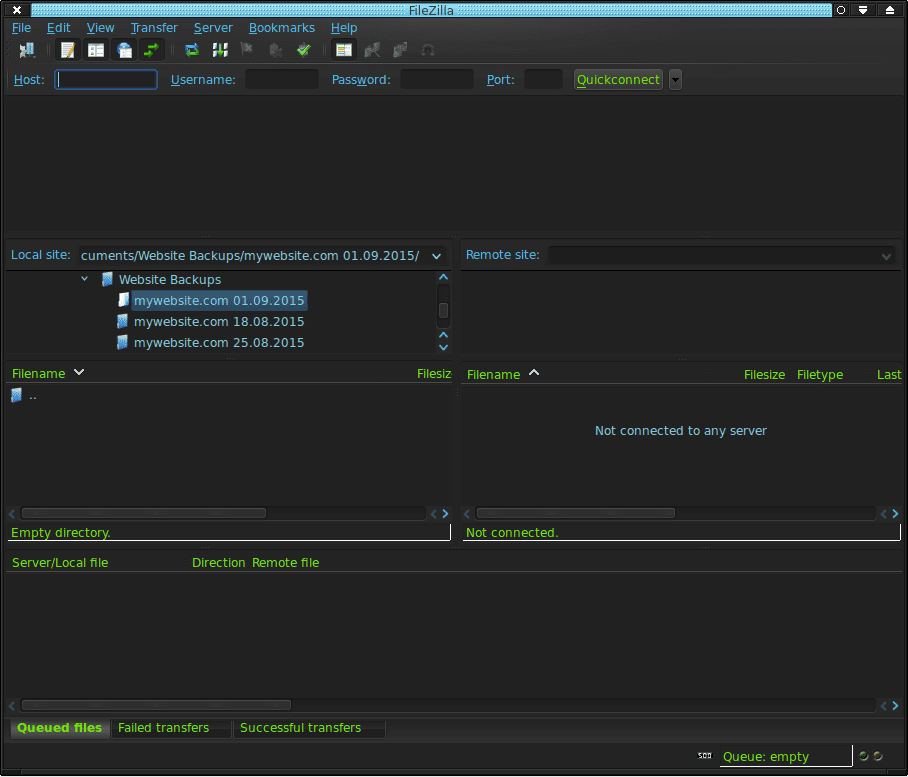
Let’s first click on the Site Manager button from the File menu. Once you have that loaded up let’s take a look at those FTP credentials that you grabbed from your hosting account and enter them in here:
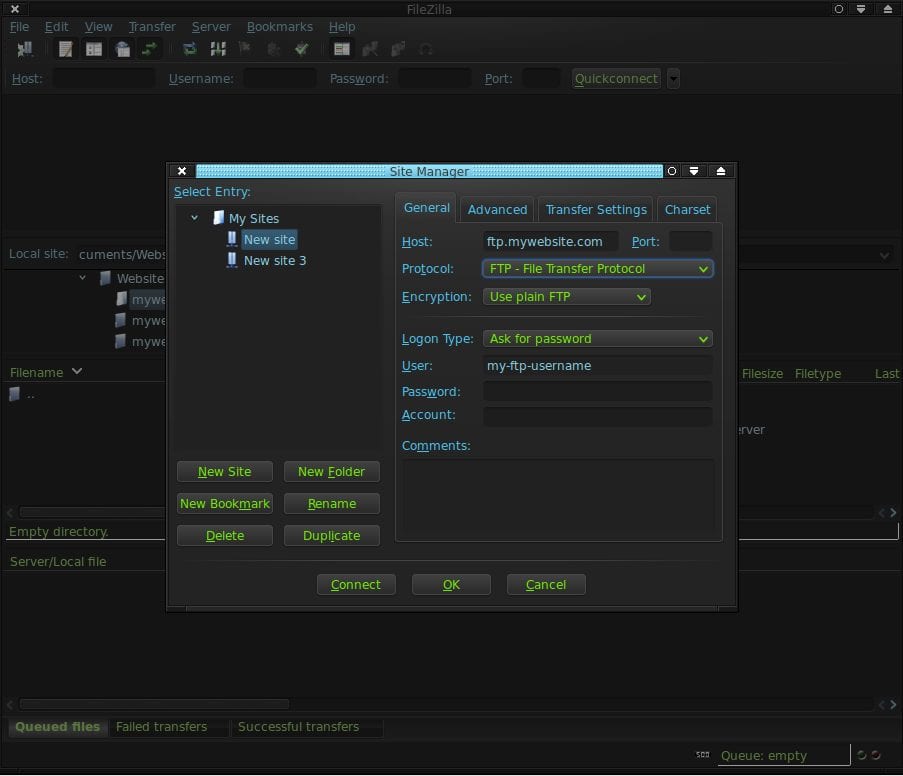
Most of the time regular FTP works although it is more secure to use SFTP or TLS (encryption is your friend) and sometimes it is required to use a certain protocol depending on your hosting provider or server. If you are using our CloudProxy Website Firewall be sure to use the hosting IP address of your website which can be found in your firewall dashboard.
Pro Tip: FTP uses port 21 and SFTP uses port 22 by default. Sometimes you have to mess around with your FTP credentials a bit to get them to work; If you have trouble I’d recommend speaking with your hosting provider and they should be able to help you out.
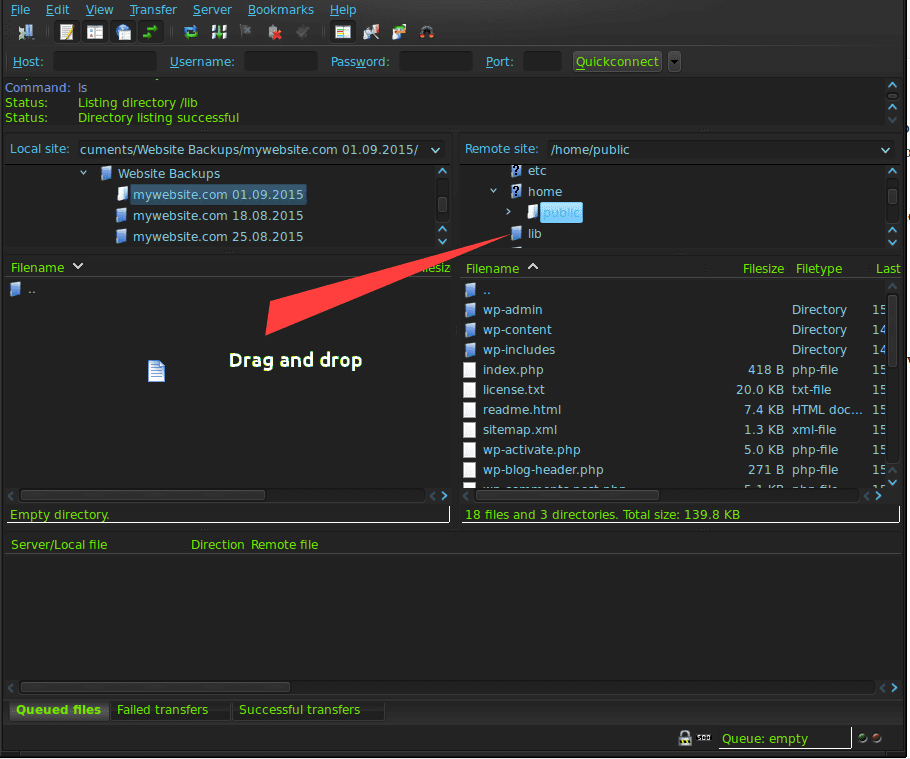
Ok, beauty! We’re in!
So on the left are the files on my computer and on the right are the website files on the server. Basically we just need to drag the server files over to our local computer. Don’t worry, they won’t be removed from the server! Just copied over.
So first, find the public root of your site (in this case public but can also be called public_html, httpdocs or something similar) click it and drag it over to the folder on your computer you want to save it in.
Pro Tip: If you are using a caching plugin on your site, clear your cache before you backup your site. These files are meant to be routinely expunged and if you have cache files going all the way back to 2011 then you could potentially save yourself hours of time by doing this first.
Here I have a handy little naming scheme for weekly backups (trust me, this is important):
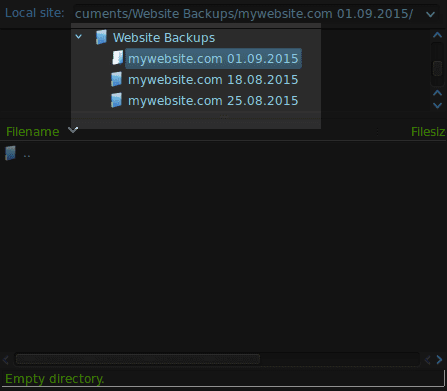
Now the transfer begins. Put on some coffee because sometimes this can take a while, especially if you have a lot of photos or plugins on your site and even more-so if your website resides on a slow or grumpy server.
Filezilla should let you know once the transfer is complete. If not, the file transfer queue at the bottom of the program will be empty and no longer transferring files.
Now you’re all done with phase one!
Database
Ok now for the other half. What you’ll want to do is take that adminer.php file that you downloaded earlier and drag it over to the root of your website like so:
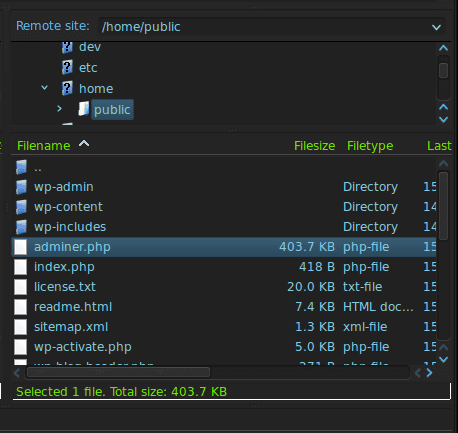
Pro tip: Be sure to delete adminer.php from the server when you are done. It’s best not to leave these tools around when not in use, otherwise it poses a security risk.
Now open up your browser and type in yourwebsite.com/adminer.php and you should see this:
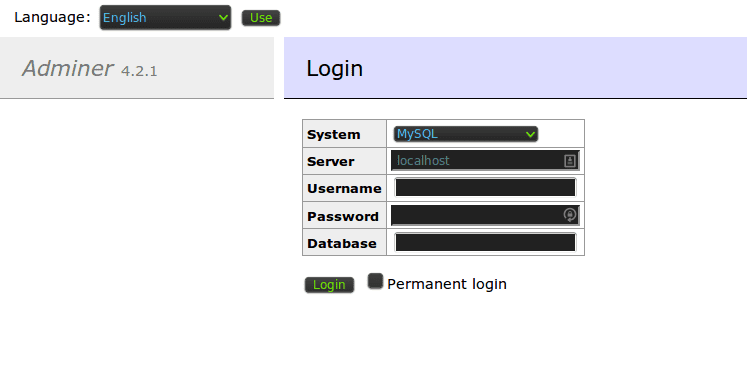
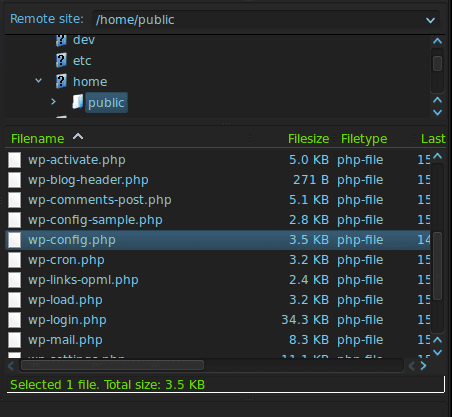
Now let’s log into the database. If you do not know your database credentials, open your website configuration file on your server in Filezilla. This would be wpconfig.php on WordPress, configuration.php on Joomla, and settings.php on Drupal. Right click the file and open it up with a text editor, and you’ll be able to find the login information Adminer needs.
Take those credentials and enter them into Adminer and you should get logged in:
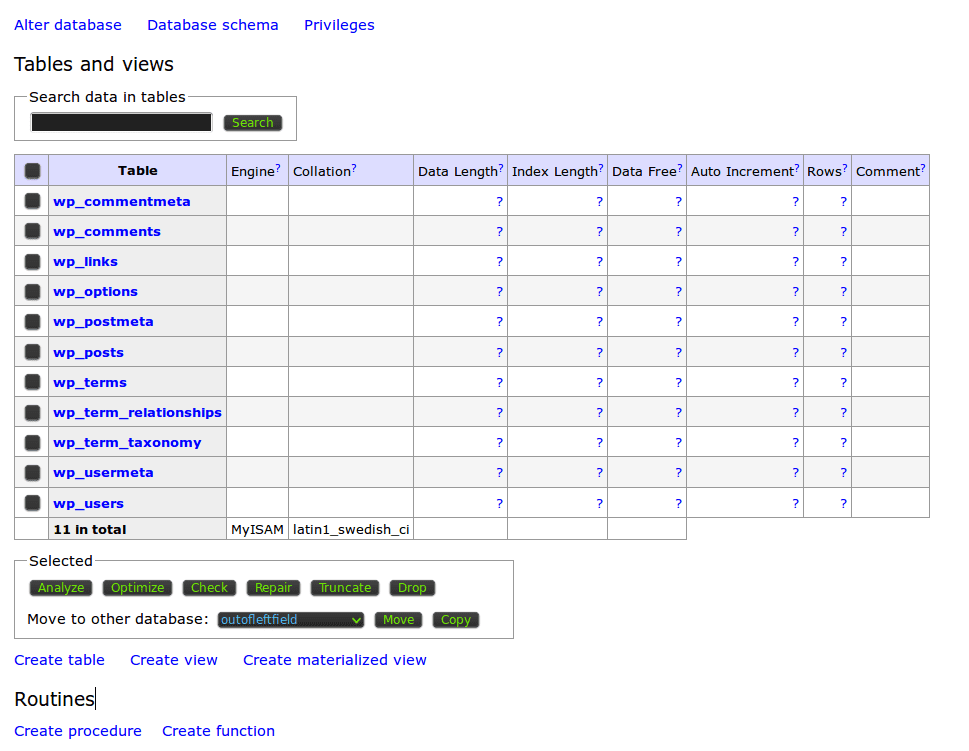
Great! Now what we need to do is to export the database into a single file and download it to your computer. Click on the ‘Export’ button on the left hand side and you’ll be brought to the database dump panel:
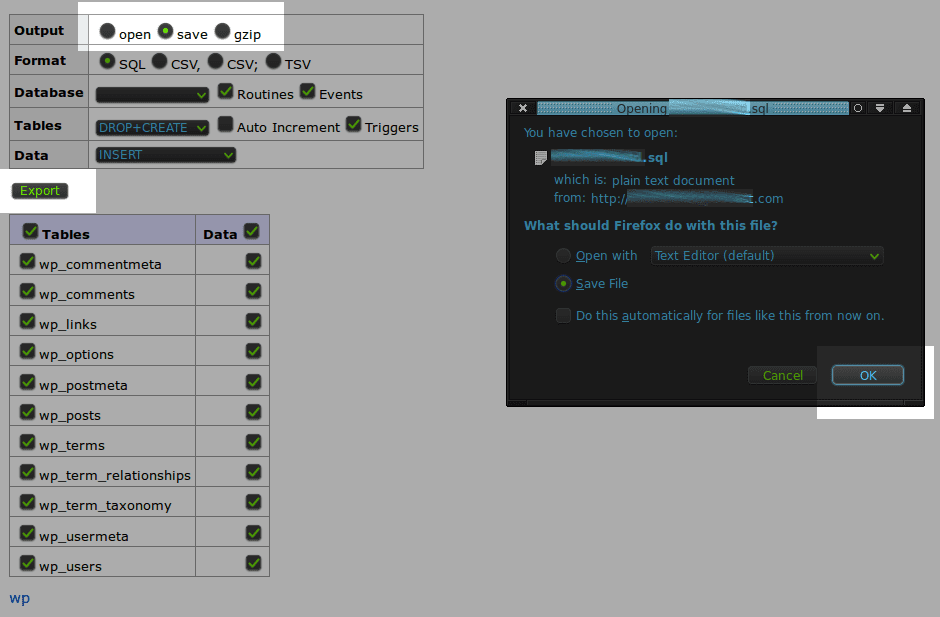
Make sure to select Save and then click on the Export button at the bottom. You will see a download prompt. Save it to the same location where your website files are. Usually this part only takes a few minutes and you should be good to go.
Some websites have large databases and this can take a while. Occasionally this can cause the server to time out. This is uncommon, but if you experience this then I would recommend that you download a copy of your database directly from your hosting account.
Once that is done then you are solid! All systems go. If you are going to continue to perform backups yourself make sure to do this somewhat often – I would recommend at least once a week.
If you’re interested in a service to automate this process for you then we have an affordable solution available here.
Backup Security
This tutorial just wouldn’t be complete without considering the importance of backup security.
It is imperative to store your backups in a secure location! Take measures to ensure that they aren’t accessed by those who shouldn’t or, worse yet, that they become the very thing that causes your site to be compromised to begin with. There is a lot of important information in these backups. Take your website configuration file, for example. The access to your database is sitting right there!
There is also a ton of outdated core files, themes and extensions contained within old backups. Out-of-date software is the leading cause of website infections! I see many websites that store their backups on their live server in directories like /old and /backup. This is very poor practice and renders your website vulnerable to all sorts of easily preventable attacks.
You can store your backups securely on your local computer, external backup drive or even a CD/DVD. Although not a necessary measure, in all cases it is best to encrypt and password protect your backups. This can help prevent them being misused if the files themselves are accessed by someone who shouldn’t have them. How you encrypt them will depend on the operating system you are using.
What If My Site Gets Hacked?
Sometimes websites are compromised when the computer used to administer the website is infected with malware. Keyloggers, trojans and other malware can scoop up FTP credentials or access the website backups you have stored on your machine. Be sure to frequently scan your computer for malware with a decent anti-virus program, regardless of what operating system you use.
It’s worth mentioning that you may be concerned that if your website is hacked and you are using your own computer to store those backups that you may end up downloading malware onto your machine. This is a legitimate concern! However, most of the time the malware that resides on websites is PHP based or written in some other server-side scripting language and wouldn’t execute on a desktop/laptop/tablet computer the same way that it would on a web server.
Nevertheless, it is important to employ effective security monitoring on your website to help prevent a site compromise to begin with. We offer a free WordPress security plugin, and our Sucuri AntiVirus plans include regular remote and server-side scans as well as protection from our Website Firewall.
If you download an infected backup, a full/thorough anti-virus scan of your computer with a decent anti-virus program will flag any dangerous files that may have been included with the hacked backup.
How to Restore
So let’s say you need to restore one of your older backups. Let’s say your site got hacked or your site is displaying a White Screen of Death (Internal Server Error) due to some botched update, misconfiguration or incompatible software. What do we do now?
Restore Files
Let’s say we have those website backups stored on my local computer like I showed earlier. What I’ll do is pretty much what we did before except in reverse. We’re going to drag the files from the backup we want to restore over to the public root directory of your site.
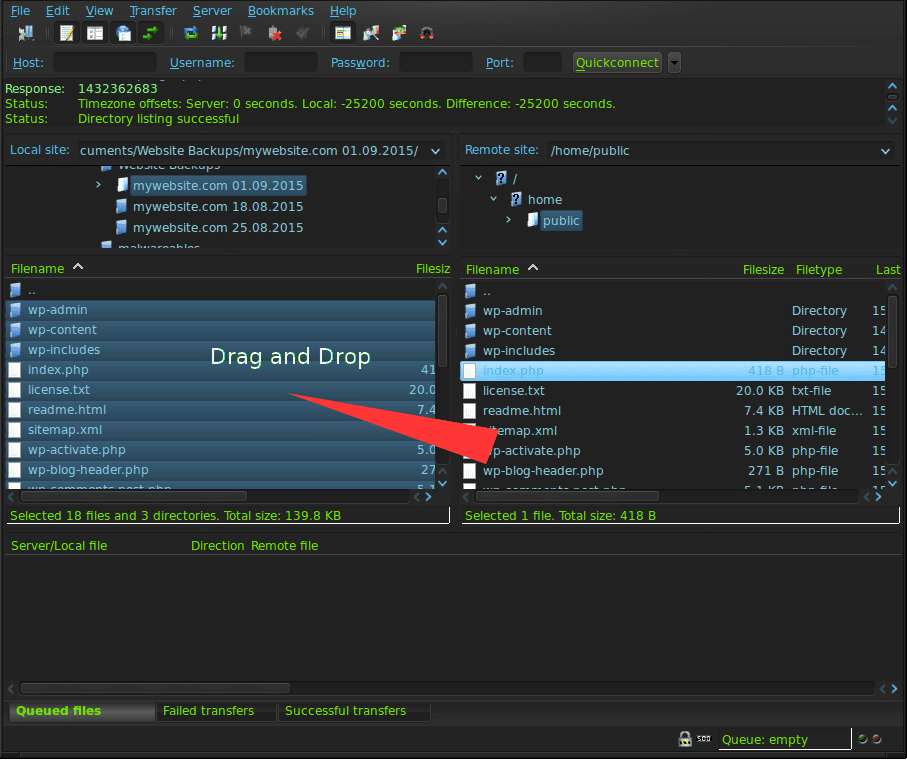
A prompt will display asking how you want Filezilla to treat these transfers. Since we want to replace the files on the server with the files on your local hard drive we are going to select Overwrite as well as Always use this Action and Apply to Current Queue Only. This will mean that during this transfer all the files will be replaced with the ones you backed up earlier.
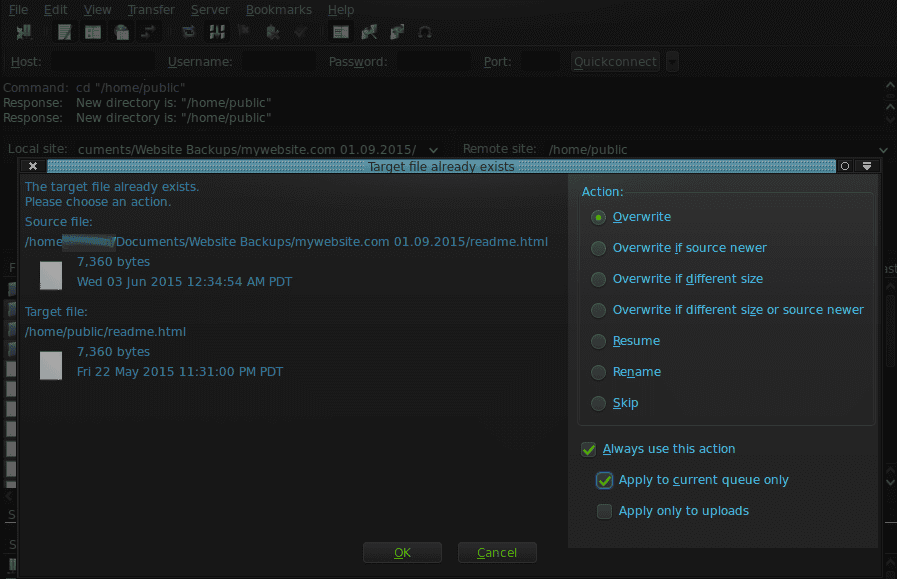
Let that run until the queue is empty and all files have been replaced and overwritten.
Restore Database
Now for the database!
Log back into Adminer using the instructions from earlier on. You’ll need to re-upload the adminer.php file to the server because you deleted it when you were done working with it, right 😉 ?

Now select the Import button on the left hand side. Now, click on the Browse button and select the database from your computer (or other storage medium) and select Execute. This will begin the database restore.
If your database is too large or it times out then you can try restoring your website database directly from your hosting account instead.
If all goes well you should see a confirmation that it was restored successfully. Hooray!
Backups For the Win
If you’re new to FTP and database management, and this all looks a bit foreign to you, then fear not! With some practice and patience you’ll get the hang of it and soon enough this will be easy.
The better equipped you are with using these tools the more effective of a website administrator you will be. Having an effective and secure backup solution is an often overlooked asset and – trust me – those files will be your best friend on a rainy day.
If you are interested in learning more about how to create an effective and secure backup strategy I’d recommend also checking out a blog post made by my colleague Keir.




![Malware comes in many different varieties. Analyst Krasimir Konov is on this month’s Sucuri Sit-Down to help keep them all straight. From malicious iframes to SEO spam, join host Justin Channell as he racks Krasimir’s brain on all the different types of malware. Also, Krasimir discusses his recent blog post about a malicious cURL downloader, and Justin breaks down the latest website security news, including patched plugins you should update. Podcast Transcript Justin Channell: Hello, and welcome to the Sucuri Sit Down. I'm your host, Justin Channell, and this is a monthly podcast about website security, where we get in-depth with the malware removal experts here at Sucuri. Later in the show, I'll have our analyst Krasimir Konov to chat about some different types of malware, but first, let's take a look at other topics we've published on our blog and Sucuri labs notes this month. First up, we have some new information about credit card skimming with hackers using a hybrid method to steal payment information from eCommerce websites. Our analyst Dennis Sinegubko wrote about this for the Sucuri blog back at the beginning of June. Now, most credit card stealing malware is a client side JavaScript that grabs data and sends it to a third party server. But, that approach has a drawback for bad actors because it's still possible to track the requests and catch them as being suspicious. Now, to get around that, bad actors have started harvesting information server side by modifying core PHP files. In this case, the infection would be undetectable from the outside, but it's still going to be pretty easy to find because you're rarely modifying any of those core files, so any of those changes that are going to come up are going to be suspicious. To get around both of these drawbacks, we're seeing bad actors combine the two. So client side snippets of JavaScript are sending stolen credit card data to server side scripts that they've installed on the same server as the site. Now, this allows bad actors to cover their tracks a little bit because the traffic that's being redirected is going to the same server, and that's less likely to be flagged as suspicious. It's a bit more complicated to pull this off, but our team has been seeing this hybrid approach in the wild, so it's something to be on the lookout for. Now, another month has passed, and we found more cross site scripting attacks targeting WordPress plugins. Most notably, we discovered one that affects users of the YITH WooCommerce Ajax Product Filter plugin. Now, this is a plugin that allows WooCommerce stores to be filtered by product type, and it's pretty popular. It's got about 100,000 users right now, so with it being vulnerable, it's very important that all of them update to the latest version, which is 3.11.1. Some of the other plugins we found cross site scripting vulnerabilities with included Elementor Page Builder, Careerfy, JobSearch, and Newspaper. If you're looking for a full list of vulnerabilities that have been patched this month, John Castro at the Sucuri Labs blog has you covered. Check out our show notes for the link. Also, this month I had a blog go up detailing what's called a jibberish hack. It's basically the same motivation as an SEO spam attack where bad actors use your site's good standing to redirect visitors to their own sites. But in this attack, you'll find a bunch of randomly named folders filled with a ton of HTML files with really nonsensical file names like cheap-cool-hairstyles-photos.html. It's just going to be a mishmash of keywords that clearly you didn't put there. Unfortunately, just deleting all those HTML files and folders is not going to be enough to get rid of that jibberish hack though. You're going to need to fully clean any hacked files and database tables, and then you're going to have to deal with all the damage caused to your site's standing. And just keep in mind, if you find anything about that process too daunting, we're always here to help. Now, for this month's Sit Down, we have Sucuri analyst Krasimir Konov. Earlier in June, he had written a lab's note about a malicious downloader script that used the curl function, and we chatted a bit about it, but more importantly, we went really in-depth on all the different varieties of malware that website owners need to be aware of. But, before I get started with Krasimir, I just wanted to remind you about the Sucuri Sync-Up, our sister podcast. It's a weekly website security news briefing that you can find anywhere you get your podcasts, as well as the video version on our social media feed, and now you can even get it on your Amazon Alexa smart speakers. Just search Amazon skills for Sucuri Sync-Up, add the flash briefing, and get new content delivered every Monday. Now, on with the show. Hi Krasimir, thanks for joining us on the show. I thought we could start off and maybe have you tell us a little bit about yourself and what you do here at Sucuri? Krasimir Konov: Yeah, sure. Well, I joined Sucuri originally in 2014, but I've been in the IT business for about 10 years. Nine of those I did security. And currently at Sucuri I'm one of the malware analysts. I used to work in the front lines, used to clean websites and whatnot, and then I gradually moved up, and now I'm working in the malware research department. And my day to day job is basically analyzing malware, and then once I analyze it and figure out what it is, then I will create a signature for it. And we'll add those signatures to our tools, so we can automate some of the work we do. And I also write some Labs Notes blog posts. Usually, if I find something interesting in malware or some security topic, I'll write about it. Justin Channell: Yeah. And of those topics recently that you wrote about, one was about a malicious curl downloader, and how exactly did that work? Krasimir Konov: Right, yeah. That was an interesting one, but not very unique or anything like that. We see that a lot with curl being used as a downloader. It's a very common malware. So rather than including the actual malware in the file, the attackers would use curl to download the malicious code. In this case, they'll download it from Pastebin, but it could be anything. It could be another website or anything like that, and curl would just make a call to the website, request the code. The website will respond with the code, and then later on, there is some code to either save the output somewhere on the website, or you'll just run it through eval and execute the actual code right away. Justin Channell: Right. And you said that it's commonly found in malware, but let's kind of maybe talk a bit broader about malware in general. What is everything that is classified as malware? Krasimir Konov: Well, in general it will be anything that the owner of the website didn't authorize, anything that was added by a third party. There is a lot of different malware. It could be even something like a defacement that will also be considered malware because it was something the user did not authorize. Even though it might not be doing anything malicious on the website, it's not infecting users, the visit is still something they did not authorize. So defacement would also be considered malware. And even something like ransomware where the website is technically not really damaged, it's all encrypted, but it's not infecting anybody. It's not doing anything malicious, but it's still encrypting the entire website and asking the user or the customer, the owner of the website for a ransom they need to pay in order to get the website back online. Justin Channell: Okay. Let's maybe break it down to each individual type of malware. For example, what would be a way that maybe I-frames could be maliciously used by a hacker? Krasimir Konov: Yeah. An I-frame can be used maliciously when it loads content from another location. You can look at the I-frame as a window that just opens another website. So anything that website has on it, you're pretty much loading it through the I-frame. So if that website is infected and it's serving some kind of malware, by opening an I-frame, you're loading all those elements, everything that was on this website. And sometimes the I-frame can be as small as pixel or something hidden somewhere off the screen, so you wouldn't even know that it was opening it. Justin Channell: And yeah, I feel like we've also seen a lot of them where they're used almost to mimic popups as well. Krasimir Konov: Yeah. I mean the I-frame, it could just load from another website and the other website could do anything. It could be serving just malware and it would try to infect the user that doesn't even know that they're being connected to the other website. It could just have some other JavaScript that's just trying to open up pop ups on the original website through the I-frame. Yeah, it could be a lot of things. Justin Channell: Okay. And also, let's talk a little bit about conditional redirects and how those work. What allows a script to detect which devices are coming in and where they're coming from? Krasimir Konov: Right. Yeah. That's a common one we see a lot. Basically, a conditional redirect would be something, it's a redirect on the website. It's obviously malicious, but there's certain conditions that need to be met before the redirect is actually executed or the redirect happens. For example, let's say if it's on a phishing website or a phishing page that is hidden somewhere on the website. For example, if Google visits it, obviously the attacker doesn't want Google to see the actual phishing page and record it as a phishing page. So they'll look for, for example, the IP address. They would look for the user agent. And a lot of times they can tell that it's a bot. So they'll just return a 404 response, for example, that will be like, "Oh, page not found." So Google would be like, "Oh, it looks like this page doesn't exist." But then if a regular user goes to the same page, then those conditions will be met. The actual website or the script behind the phishing will check and see, and be like, "Oh, this one is running Firefox or Chrome," and be like, okay. And then they'll look at the IP and be like, "Oh, he's in whatever, he's in United States somewhere." And he's like, "Oh, okay. That's good." And then once all of these conditions are met, then the actual script will serve them the actual phishing page. And it'll be like, "Oh, you need to fill out this to recover your account or whatever, or type in your credentials to log in here." Justin Channell: And so this is the type of thing we're really, a website owner is going to run into this more commonly when people are complaining about they're getting served bad content or whatever, and they can't seem to replicate it. It's likely probably these kind of redirects. Is that right? Krasimir Konov: Right, right. It could be something as specific as, for example, a range of IP addresses that correspond to an ISP or maybe let's say a country. It could be like, "Oh, were targeting only customers in the US," so if you're connecting from another country and you go to the same website or the same page, it would just say 404. It will give you a page not found. But then if you actually have an IP address from the United States, you're connecting from the United States, then it will actually show you the phishing page. Justin Channell: Now another type of malware I feel like we see a lot here is SEO spam. We hear people talking about that. What are some of the top SEO spam keywords that you see coming through? Krasimir Konov: Yeah. We get that a lot. We see a lot of spam on websites. A lot of times attackers will use SEO spam to gain ranking for their own website. Or they'll just try to include some kind of SEO spam in links to another website that they're currently running or something. I mean, these things change all the time. So a website might be up for a week and then it'll disappear, and then they'll start another campaign. But yeah, we see that a lot. We see all kinds of keywords they use. Most common ones will be something like Viagra. We'll have like jerseys for sale. A lot of times, they'll use name brands like Nike, Rolex, Prada. We've seen even some essay writing services for some reason. I'm not sure why, but that's common. We see, for example, pharmaceuticals a lot that will use specific medicine names. They'll use all kinds of replicas, like a replica bag of this, replica this, replica that. We'd see prescription, also payday loans. And obviously there's some adult related sites and things like that keywords. Justin Channell: So pretty much anything that people are going to be searching and clicking on are probably going to be targets for SEO spam? Krasimir Konov: Right. I think a lot of it commonly is pharma related because a lot of people are looking to buy medicine online, and a lot of times will require a prescription. So a lot of people are like, "Oh, let me see if I can find this medicine that I can buy it online somewhere." They don't need a prescription. They don't want to pay to visit a doctor and whatnot, and they'll look for it. And yeah. Justin Channell: Now, whenever somebody's website does get hacked with a SEO spam attack, what kind of effect can it have on the website beyond just being defaced? Krasimir Konov: Yeah. You can have a lot of things can happen, negative things. For example, the website can be blacklisted because of the keywords. And that usually represents a big red warning when you go on the website, depending on who blacklisted it. But if it's Google, for example, you'll see a big warning and it'll tell you this website contains malware or there's something wrong with this website. So, pretty much all the traffic on the website will be gone. And then you can also lose a lot of your reputation if there is a SEO spam on the website. For example, if you were ranked in say number five for certain keywords that represent your product on Google search engines, and then suddenly you get hit with SEO spam, then all these search engines then go and visit the website. And all of a sudden they're like, "Oh, there's all these weird key words on here, all this SEO spam that's causing a lot of mixed signals." And the search engines are like, "Oh, where do we rank this website now? Do we rank them with this product that's originally what the website is about? Or do we take into consideration all these other keywords that are mixed up that are SEO spam?" So, all of a sudden your website might go from being ranked number five on the first page to being on the 10th page. And then you rank for all these other keywords that you didn't intend to. And then people search for something completely different. They're searching for jerseys or something, or now they're searching for Prada products, and then suddenly your website pops up in there. So you're not really getting any good traffic, not targeted traffic. But, yeah. Justin Channell: Okay. So in a lot of ways, the effects of SEO spam would kind of be the same for defacements or any kind of malware with the blacklisting, but it does bring that kind of unique part to it where then it can also then bring traffic that you weren't expecting from somebody searching for jerseys, for example. I had not really ever thought about that. Krasimir Konov: Right, right. Yeah. It will definitely bring some traffic. I've seen a lot of times where websites will be connected. Let's say, there was 1,000 websites that were all infected with SEO spam, and it will kind of link each other to try to bring each other up into the rankings. And so you would see a lot of strange traffic from some random websites that were, for example, that were previously infected, even if they might not be anymore. But yeah, they'll be sending traffic to you or there'll be usually search engines sending you traffic, but for the wrong keywords. People are looking for something else, so obviously they're not going to be interested in your website. They're not going to buy anything because they're not looking for that. Justin Channell: And now, so thinking of the way websites get infected, a very common way it seems to be is through phishing campaigns. What are some recommendations you have for the best ways to avoid becoming a phishing victim? Krasimir Konov: Yeah. There is some ways. I mean, it depends really on the type of attack. Obviously, a lot of people, when they think of phishing, they think, "Oh, it's just like a PayPal phishing page and it just looks like the original," but it could be more subtle. If it's just a regular page where you're just going and you get redirected to another website, obviously the first thing to look is if you have the security padlocks, make sure that traffic is encrypted. A lot of these websites don't really have any encryption nowadays. More are starting to get that with pre SSLs being issued and whatnot. But that's the first thing to look and see, make sure. Anywhere you're typing your sensitive information, you want to make sure you have the padlock to make sure everything is encrypted. Krasimir Konov: But also you want to look at the URL of the actual website you're visiting. A lot of times they'll try to hide it. So you might have to be careful and look closely. Something that might be an I will be an L or something like that. And a capital I and L might look kind of similar into your IRL, so you might miss something like that. Say, if you're looking for PayPal and it might replace the L with an I, and if you don't look closely, it might look exactly the same. And you're like, "Oh, okay, it's paypal.com," but not really. So yeah. Just pay attention to the URL, make sure it is the actual website. There's no paypal.com dot something, dot something else, dot com. Yeah. You want it to just say paypal.com, and then it'll have forward slash and something else. But yeah, it gets more complicated when you have, for example, a phishing page that's injected into a regular page. For example, you have a checkout page on a website that you're buying things from and you go through the checkout page and you're looking at where you type in your credit card information and whatnot. And you might have a phishing page that actually looks exactly like a little box that gives you where you put in your credit card number, or your name, your address, and all that. So that will be more subtle. For example, that could be also an I-frame that's just coming from another page. And it will look exactly like it's part of the website. You're on the legitimate website, but only that portion of the website is actually the phishing page. And you look at it and you're like, "Oh, okay. It looks fine. I'm just putting my credentials." So that one could be a lot harder to figure it out. Usually, if it's something like that, I look for something that looks kind of out of place. Maybe they didn't get the right font. It might not be the same as the original website or there might be something out of place, some fields that are missing or some fields that are squished into the left or the right. It looks kind of awkward. It's like, why would this be like this? The whole website looks professional. There's a pink background or something, for example, and then suddenly there's this white box in the middle. It's like, ah, it looks kind of weird, out of place. Justin Channell: So pretty much if anything looks slightly out of place, you really should double check everything at that point. Krasimir Konov: Right. Right. Yeah. Obviously there's more ways that you can check, but I wouldn't get into more technical, like inspecting elements and looking at stuff, but yeah. Justin Channell: And now another type of malware that's kind of, and it kind of plays in with whatever the other infection is, is backdoors. Can you give us some examples of what backdoors can be? It's mainly just when a hacker can get back into the site to reinfect it, but I know there are a ton of different methods. And what are some of the more common ones and then maybe some that really interesting that you've seen? Krasimir Konov: Yeah, there is a lot. They'll probably be one of the first things the hacker would do is if they compromise a website, obviously they'll try to spread backdoors and just inject code everywhere so they can get back in, even if the owner of the website or webmaster cleans it. They want to try and hide some malicious code somewhere so they can always get back in. There's many variations. A backdoor could be something as simple as a single line of code to just [inaudible 00:20:19] argument, some kind of string or something via get or post. Krasimir Konov: And then it runs into an eval, so it evaluates the code and executes it. And some backdoors are very complex and they can be included in, let's say you have a WordPress site and you have a specific login page where all the login credentials are being processed and everything else. They could even inject code into that to basically bypass the whole login mechanism so that they can just bypass everything. They don't even have to know any user. They don't have to know the password, nothing. They'll just include some lines in there, and every time they'll be just able to log in. Yeah. It gets pretty crazy. Yeah. I mean, there's all kinds of malware. There is always a malware, for example, that just targets credit cards and will just target the eCommerce websites. And they'll just try to steal the login credentials, I mean, the credit cards. They'll try to get your address, your credit card information, any kind of CVV code or whatever you typed into the billing address, everything. And then there's also malware like the backdoors that are just trying to keep the attacker in control and trying to get them back into the website. There's just so many variations of what a malicious user might want to do on a website. Some can be something as simple as just reinfecting the website. They don't want to keep control. They just want to keep reinfecting it with some kind of malware. So even if you clean it, it would just get reinfected. Some of them in the database, otherwise might be in the files. We've seen some added into a [inaudible 00:22:14] job that just keeps running on the server. There could be malware that is just a giant to, for example, attack out of websites. Like for example, a distributed denial service where they put the same malware on thousands of websites. And then they try to send traffic to one website to try to bring it down. Yeah. People try to do all kinds of stuff with websites. We've seen even some cryptocurrency mining malware that you go onto a website and suddenly your PC starts running like crazy. And you're like, what the hell is going on? Your fans turn on and the PC is 100% CPU. And it turns out that the website has some malware that's just by mining Bitcoins with your CPU and it's using all of it. Justin Channell: Wow. Okay. So one question now, the last question I have is of all the malware that you've seen, what do you think is the coolest piece of malware that you've ever seen? Krasimir Konov: I think the coolest would be the ones that are so subtle that you don't even know that it's there. For example, we've seen some that were pretty innovative. It will be just a one liner code that's just one line. And for example, it will be let's say 40-50 characters, something like that. And that's all it is. And they'll hide it somewhere in between the legitimate code. And if you don't know what you're looking for, you would never see it. It doesn't look suspicious. There is no links to some other website. There's no some kind of encrypted code or anything like that. It's just a simple one line. And then if you're just scrolling through the file looking for something, you would never see it. It just looks like all the other code. And then if you look closely, you're like, "Oh, there's this..." Look closely, and you're like, "Oh wow, this is not supposed to be there." And then you keep looking at it and you're like, "This looks really weird." And then you see that it's actually doing some malicious things and trying to evaluate some code or taking output from the outside, I mean, some input from outside, you can call it and give it code to run. Justin Channell: Well, Krasimir, thanks for coming on and talking to us for today. Krasimir Konov: Yeah. Thank you. Thank you. I'm so happy. I'm glad I was able to do this podcast and I can't wait to do another one. Justin Channell: Yeah, we'll have you on again. Thanks. Krasimir Konov: Thank you. Justin Channell: Thanks again to Krasimir for joining us here on the Sit Down. We'll be back with another episode next month. So be sure to subscribe on Apple podcasts, Spotify, Stitcher, or any podcasting platform. Also, be sure to follow us on social media at Sucuri Security and check us out at sucuri.net. That's S-U-C-U-R-I.net. I'm Justin Channell, And this has been the Sucuri Sit Down. Stay safe out there.](https://blog.sucuri.net/wp-content/uploads/2020/05/20-sucuri-podcast-blog-post_blog_image-390x183.jpg)


10 comments
Thanks for the informative post. However, I’m pretty sure that most readers know to to backup a website manually via FTP. It would be most useful to have an automatic backup solution using SFTP from one server to another. Many WordPress backup plugins are not very reliable. Connection errors to Dropbox occur quite often. And since most plugins use the WordPress cron, sometmes they don’t backup at all, if traffic is very low.
A good backup strategy is still very challenging. Let alone the combination of incremental and full backups which is still the gold standard in my opinion.
Thoughts about using automated database backup plugins, or an external service to backup the /uploads directory? Most of the db plugins I’ve used will send an gzipped email attachment, or store in a non-public directory. I like the uploading adminer.php only when you want to backup or restore, but I like scheduled backups more…
BackUp Buddy enables both full all file and database backups, scheduled and downlaoded locally or to warious cloud service, there are others and whilst I use backup Buddy there are a range of plugin alternatives. Some hosts also provided automated backups and then you can download to your own remote sotres on various third party site. FTP seems a bit old fashioned to me but it is a low cost if time intensive means of achieving the same end.s
Backupbuddy is great option, use it for lots of clients. Works effectively and sends to our cloud storage on a weekly basis. Emails send out for backup failures is a must. And if migration is needed they really make the whole process easy. +++
All of this summary is one click on a cPanel server. cPanel login -> Backup -> Download a Full Website Backup. Step out to lunch, return and it’s done.
Recovery of backups is a good more tedious and is nicely summarized above.
But it is 2015. We have nice plugins in WordPress that automate all of this off to the cloud, with one click recovery the norm. And there are services available, like CodeGuard, that make all of this discussion sort of mute. Backup management has become pretty trivial nowadays.
The problem seems to lie less in “how to do it,” and more in the folks finding time to “just do it…”
I wouldn’t advocate FTP these days, choose at least SFTP. Besides that, make a backup server side or inline with tools like updraftplus (no, I don’t work for them ;). Although this article show a very important aspect of owning a website. Making a backup is part of a way bigger picture.
UpDraft Plus is what I use. It’s very powerful and I recommend it.
FYI – I recently (9-14-2015) downloaded Filezilla from Github for the Mac and it was riddled with malware. I had to use Malwarebytes Anti-Malware for Mac to clean it up.
Heads up.
This seems like a lot of steps. What about something like the Duplicator Plugin. I use for BU’s and deploys all the time.
how did you get your filezilla to look like that?
Comments are closed.