Navigating to your WordPress site only to be met with the White Screen of Death (WSoD) can be a daunting experience. This error denies access to your site for both administrators and visitors, disrupting your website’s performance and user experience. Despite its prevalence, this common WordPress problem has a number of straightforward solutions.
In this post, we’ll cover what the WordPress white screen error is, outline the most common reasons for this issue, and detail the steps you can take to resolve it. Our goal is to help you get your site back to normal as quickly as possible.
Let’s dive in!
Contents:
- What is the WordPress White Screen of Death?
- Common causes for the White Screen of Death in WordPress
- How to fix the White Screen of Death error in WordPress
What is the WordPress White Screen of Death?
The WordPress White Screen of Death, sometimes condensed to WSoD, is an infamous error that transforms your carefully crafted WordPress site into a plain white screen. This error stems from issues within your website’s PHP files or database. Depending on the cause, it can either blanket your entire website in white or selectively affect certain areas like your WordPress admin dashboard or individual web pages.
The white screen error may present differently in various browsers. In Google Chrome, it can come with an HTTP 500 error warning, while in Mozilla Firefox, it can simply appear as a blank screen.
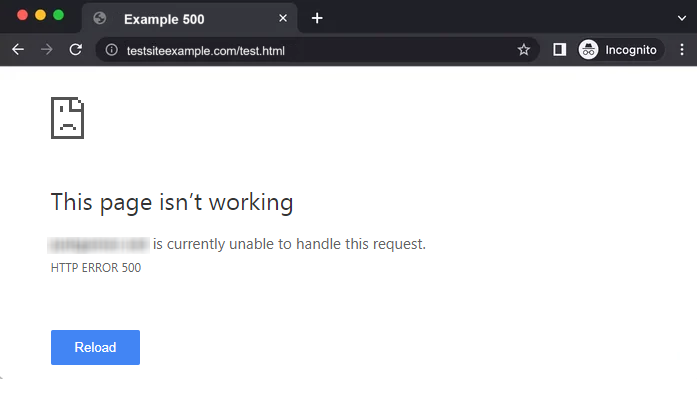
Regardless of the browser you’re using, the error messages are not usually helpful in highlighting the actual problem.
What are the most common causes of a white screen in WordPress?
The White Screen of Death typically results from PHP code errors and conflicts, PHP version incompatibility, memory limit exhaustion, misconfigured .htaccess files, or database errors. These problems can be triggered by a number of things, including unresponsive scripts that are interrupted by your hosting server or exceed your PHP memory limit.
One common cause is faulty or incompatible themes or plugins on your website. If your front-end isn’t working but your WordPress admin area is accessible, it’s likely a theme or plugin issue. You can quickly verify your admin panel by navigating to yoursite.com/wp-admin.
Other potential culprits include parsing or syntax errors in your code, issues with caching, corruption in your files, or server downtime. One common cause is interrupted updates, leaving a .maintenance file in your site’s root directory that produces a white screen or 503 status until it’s removed. Though its roots may vary and identification can be tough, the good news is there are actionable steps to mitigate and solve this error, which we’ll explore in the following section.
How to fix the White Screen of Death in WordPress
Let’s take a look at twelve steps you can take to troubleshoot and fix the White Screen of Death in WordPress.
- Retrace your steps
- Confirm the type of WSoD
- Review your WordPress error logs
- Temporarily disable your WordPress plugins
- Check your active WordPress theme
- Increase your WordPress memory limits
- Replace recently modified WordPress files
- Ensure PHP version compatibility
- Check your .htaccess file for issues
- Clear your WordPress and browser cache
- Run a scan for website malware
- Get in touch with your web host
Before making any changes, be sure to backup your WordPress files and database to easily revert back if you experience any issues. If possible, perform troubleshooting on a staging site first.
1 – Retrace your steps.
It may seem like a no-brainer, but the first step requires you to take a quick moment to think about any modifications you have recently made to your WordPress site. For example, installing a new plugin or theme, altering core files, or updating to the latest WordPress version.
This will help identify if any recent changes in your environment are causing the issue. Perhaps a newly installed theme isn’t compatible with your WordPress version or a plugin update is causing a conflict with another plugin or theme.
- Review changes: Review all the recent changes, updates, or configurations that you have performed on your website. Did you change or update anything right before the white screen issue started?
- Revert back any recent updates: Undo the most recent changes one by one. This may involve deactivating a new plugin, switching back to a previous theme, or removing custom code snippets from your functions.php file.
- Test your site: After each reversal, check your website to see if the error has been resolved.
Checking for recent changes will help you figure out if an update or change you made triggered the white screen of death. Even better, you can pinpoint the exact tweak that’s messing with your site and work out how to fix it.
Remember: During the troubleshooting process website caching can be a major nuisance as it may prevent you from seeing recent changes you’ve made to the website. You may want to temporarily disable caching and place your website in maintenance mode while you are working on it. To circumvent some website caches and ensure that you are performing a proper refresh of the page consider adding a ?variable to the URL as you access the site like so:
hxxps://mybrokenwebsite[.]com?nocacheIf you’re using a CDN or host-level caching, be sure to clear/purge those caches as well.
Didn’t help or no recent changes made? Let’s take a look at the type of white screen error you’re experiencing.
2 – Confirm the type of WSoD.
Before you go on a wild goose chase digging through error logs and whatnot, you’ll want to first confirm what HTTP response code your website is producing. This can save you a lot of time and you may discover that the fix is really quite simple.
First, load up your browser dev tools by pressing the F12 key on your keyboard, or by enabling it in your browser settings. This should display a new panel either at the bottom of your screen (Firefox) or the side (Chrome). Next, select the Network tab, which will allow you to see the response codes generated by the site. Now refresh the page and pay attention to the response code that is generated.
If the response code is 200, that means that the website is just loading a blank page. This typically indicates that there is either a blank index file present in your website, or that your theme files are missing. If this is the case, replace the index file (or remove the blank one if there is more than one) and double check that your theme files are present within wp-content/themes — if not, you can re-upload a new copy.
On the other hand, if the response code is 500 then proceed with the next steps.
3 – Review your WordPress error logs.
WordPress has a built-in debugging system handy for troubleshooting. When activated, this system logs any errors that occur on your site, which may provide you valuable insight into what’s causing the white screen of death.
Here’s how you enable debugging and inspect the logs:
- Connect to your website using an FTP client and locate the wp-config.php file in your WordPress root directory.
- Open the wp-config.php file and add the following lines of code:
define('WP_DEBUG', true);
define('WP_DEBUG_LOG', true);This code enables WordPress debugging and instructs WordPress to log any errors to wp-content/debug.log without displaying them to visitors.
- Save your changes and re-upload the file to your server.
- Browse your site until you encounter the white screen of death again. This will generate the debug.log file.
- Now, use your FTP client to look in the wp-content directory. You should see a new file named debug.log.
- Download and open the debug.log file. The error messages here will help you diagnose the white screen of death.
Enabling debugging and checking the error logs provide a direct insight into any problems happening behind the scenes without disrupting your site’s live version. Consider this your site’s “black box” that records any errors, making troubleshooting more effective.
Depending on your hosting environment, there may also be an error_log file present in the root directory of your website which should contain any recent PHP errors, warnings, or notices.
4 – Temporarily disable your WordPress plugins.
Plugins, while useful and (mostly) beneficial, can sometimes cause issues like the white screen of death. This next step involves disabling all your plugins to identify if any of them is behind the error.
Here’s how to temporarily disable your WordPress plugins to troubleshoot:
- Access your WordPress admin and navigate to the Plugins page.
- Select the checkmark at the top of table to select all installed plugins.
- Click on Bulk Actions and highlight Deactivate and then click Apply.
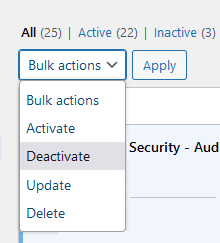
This step will deactivate all plugins and prevent them from running on your WordPress site.
If your site returns to normal, it indicates one of your plugins was causing the issue. To pinpoint the problematic plugin:
- Reactivate your plugins one after another, checking your site after each activation.
- If the white screen reappears, the most recently activated plugin is the culprit.
If you can’t reach your WordPress admin, don’t worry. You can still disable your plugins using an FTP client or your cPanel’s file manager:
- Log in to your favorite file manager and navigate to the /wp-content/ directory.
- Locate the plugins folder and rename it (e.g., plugins_deactivated). This step effectively turns off all your plugins.
If this step solves the problem, then it’s certain a plugin was at fault. You can reinstate the original name to your plugin folder, then rename each individual plugin’s folder inside it one by one until the issue shows up again. This way, you’ll discover the specific plugin causing the issue.
In some malware infections, bad actors are known to upload malicious plugins to the website to use as website backdoors or to inject malicious code into the environment. So if you’re experiencing a white screen error in WordPress, it’s definitely worth inspecting each plugin and removing any that don’t look familiar or have a suspicious name.
Plugins not the culprit? Move along to the next step.
5 – Check your active WordPress theme.
Much like plugins, a WordPress theme — especially a newly installed or updated one — can sometimes cause the white screen of death. In this step, your goal is to temporarily revert to a default WordPress theme and see if this resolves the issue.
Here’s how you do it:
- Log into your WordPress admin dashboard and go to the Appearance > Themes section.
- Deactivate your current theme by activating one of the default WordPress themes like Twenty Twenty-Five or Twenty Twenty-Four.
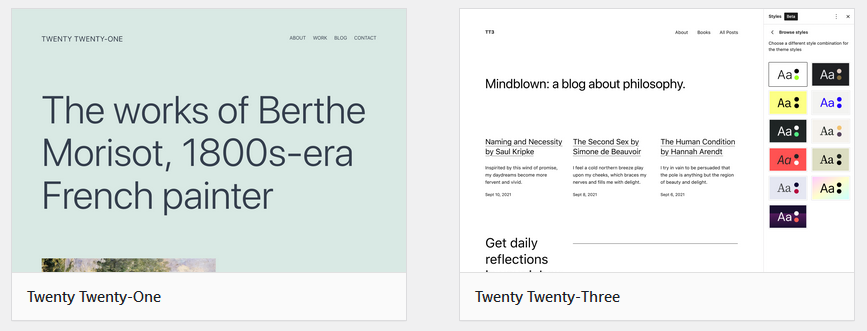
Now, check if your site is back to normal. If it is, your theme was causing the issue. Maybe it’s not compatible with a plugin you’re using or maybe the error coincided with a recent theme update.
If you can’t access the WordPress admin due to the WSoD or if you’re having other issues getting the theme changed, then the theme can be manually changed in the database. Hop into your database either with PHPMyAdmin in your cPanel or by uploading the Adminer script to your website’s root directory. You can log in using the details present in your wp-config.php file.
Change the following three wp_options values in the database:
- current_theme
- stylesheet
- template
They should have your current active theme listed there. Copy the current contents to a safe place and then replace them with a default theme name such as “twentytwentytwo” – just make sure whatever theme that you change it to is currently present in your ./wp-content/themes directory.
If you don’t have any other themes present you can download a fresh copy from the WordPress repository.
Once you are done with that, don’t forget to change the values back to what they were before and remove the adminer script for security reasons.
Tip for beginners: If you received an email from WordPress saying “Your Site is Experiencing a Technical Issue,” use the special link in that email to enter WordPress Recovery Mode. Recovery Mode temporarily pauses the failing plugin/theme so you can log in and fix it without touching files.
WordPress theme not the issue? Move along to the next step.
6 – Increase your WordPress memory limits.
Sometimes, the white screen of death is due to your website exhausting its allocated memory. Scripts running on your website require memory to execute, and if these scripts require more memory than allocated, it could result in an error. This is why increasing the memory limit is a reasonable troubleshooting step.
Here’s how you increase the memory limit in WordPress:
- Connect to your site using an FTP client, and find the wp-config.php file in the main WordPress directory.
- Open your wp-config file and add the following line of code somewhere before the line that says, “That’s all, stop editing! Happy publishing.”
define('WP_MEMORY_LIMIT', '256M');- Save your changes and upload the file back to your server.
This new line of code in wp-config tells WordPress to increase the PHP memory limit to 256MB.
Now, revisit your website to check if the problem has been solved. If you’re seeing memory errors, your host might enforce a lower server-level cap via php.ini or similar. Request to raise the PHP memory limit, and consider setting WP_MAX_MEMORY_LIMIT (used for admin tasks) to a higher value like 512M while troubleshooting.
Still no dice? Move along to the next troubleshooting step.
7 – Replace recently modified plugin, theme & core WordPress files.
Customizing HTML, CSS or PHP files of your WordPress site provides a high level of control. However, even a minor error or syntactical mistakes in the code can lead to a white screen of death. That’s why restoring recently edited files is an important troubleshooting step.
If you don’t have a recent website backup to conveniently restore from, here are the steps you can use to restore core, plugin, and theme files:
- Identify recently edited files: Determine the files you recently tweaked. These might include files from your plugin, theme, .htaccess or wp-config.php files.
- Get a fresh copy: If the file was part of core WordPress, theme, or plugin files then you can always get a fresh copy from the primary source. For example, if you’re using one of WordPress’ default themes, you can re-download it from the WordPress theme repository.
- Replace the edited file: Use an FTP client or the File Manager app in your hosting dashboard to replace the edited file with the fresh version.
- Check the website: Reload your website to see if the error persists.
Please remember to always backup your site before you start editing files, and (ideally) test changes on a staging version. That way, you can prevent “live” problems and easily restore things if something goes wrong.
It’s always better to err on the side of caution when it comes to direct modifications to your site’s source files.
8 – Ensure PHP version compatibility.
If all the previous troubleshooting steps have not been effective, sometimes a website can produce a 500 error WSoD due to the CMS, plugins or theme being incompatible with the PHP version in use on the server. This often happens to older websites which have not been updated for a while when their hosting provider updates the PHP version.
First thing’s first, search the exact PHP error that you are experiencing in your search engine of choice. Chances are other people have probably run into the same issue as you and attributed the culprit to the PHP version.
On the other hand, if you have recently upgraded PHP yourself try rolling that back to the previous version.
9 – Check your .htaccess file for issues.
A misconfigured .htaccess file can bring a website down very quickly. Some WordPress plugins will make changes to the .htaccess file (especially security plugins) so it’s good practice to temporarily rename your .htaccess file and replace it with a default copy. The default .htaccess for a WordPress environment looks like this:
# BEGIN WordPress
<IfModule mod_rewrite.c>
RewriteEngine On
RewriteBase /
RewriteRule ^index\.php$ - [L]
RewriteCond %{REQUEST_FILENAME} !-f
RewriteCond %{REQUEST_FILENAME} !-d
RewriteRule . /index.php [L]
</IfModule>
# END WordPressIf everything else is configured properly and the .htaccess was the culprit then this should bring your website back up. If this is the case then you will want to review which rules in the .htaccess file were responsible for bringing down the website.
10 – Clear your WordPress and browser cache.
Clearing the WordPress cache is a crucial troubleshooting step as it eliminates any issues that could stem from stored data on your server or local machine.
Caching is a process that stores static versions of your content, which significantly speeds up loading times for your site’s visitors. However, if a problem arises like the white screen of death, this stored data might be part of the problem. Clearing the cache also helps ensure any changes you make while troubleshooting are not hampered by this old data.
Here are general directions for browsers, the Sucuri firewall, and caching plugins.
Clear browser cache:
Clearing your browser cache removes any stored data that’s been linked to the webpage.
For most browsers, you can access this option via the settings or history menu. It’s usually found labeled as ‘Clear Browsing Data‘ (Chrome) or Clear Recent History (Firefox). Make sure you select ‘cached images and files’ before clearing, then reload your site in your browser.
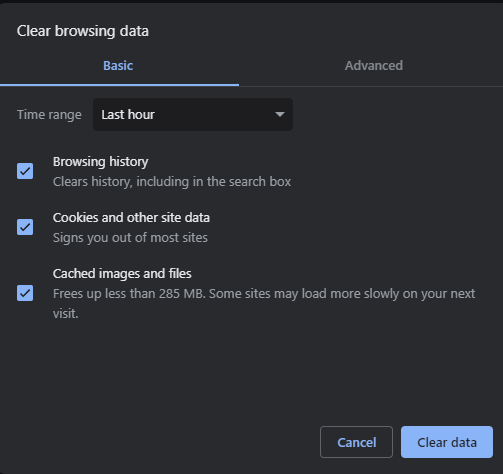
Clear cache with a WordPress caching plugin:
If you’re using a WordPress caching plugin (such as W3 Total Cache or WP Super Cache), navigate to the plugin’s settings in your WordPress dashboard. Look for an option labeled Clear Cache or Empty Cache. Click on it to clear your WordPress cache.
Clear cache with the Sucuri firewall:
Clearing your website’s cache with the Sucuri Firewall is simple.
To clear all page and file cache at once, simply go to Performance -> Clear Cache – Global in Sucuri Firewall’s settings. Then click the green Clear Cache button.
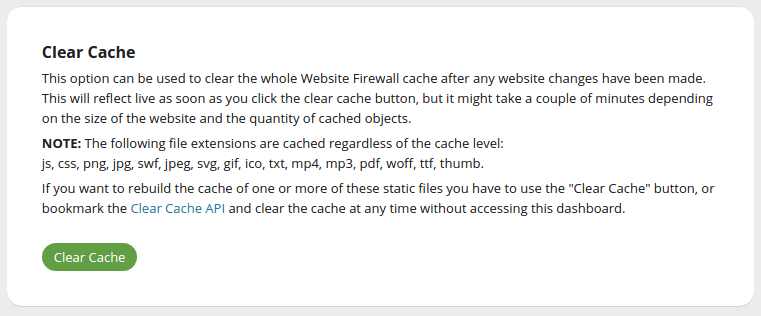
After clearing your website and browser cache, check your WordPress site to see if the white screen error has been resolved.
11 – Run a scan for website malware.
In less common cases, malware can cause a white screen error in WordPress. Hackers can tamper with your website in numerous ways, from injecting harmful code into existing files to creating a wealth of malicious files. This illicit activity could provoke a 500 server error or a white screen of death.
Typical scenarios involving malware-induced errors include:
- Injected harmful code containing bugs that cause site malfunctioning.
- Malicious code is inserted in an incorrect location, breaking parts of your site’s legitimate code.
- Legitimate website files or directories are deleted by malware.
- Files are corrupted or encrypted by hackers, rendering them inaccessible.
- The website’s storage space is exhausted due to an excessive number of malicious files.
- Corruption of the database occurs as a result of the compromise.
- The server’s resources are overly consumed due to processes initiated by the attacker’s tools, such as cryptominers or DDoS bots.
You can easily run a free website scan with the Sucuri SiteCheck remote website scanner. This tool will help you check your site for known malware, website errors, and other malicious code.
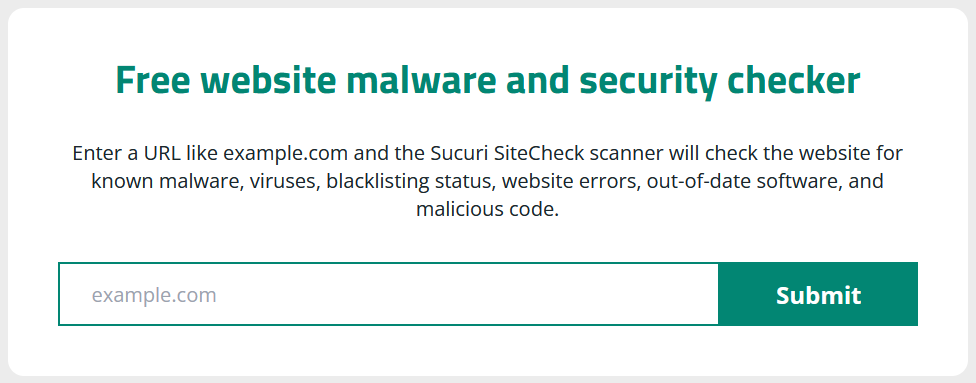
Remote scanners are not able to detect any malicious code found on the server level, however. To perform a comprehensive website scan, you can consider running a server-side scan to check for indicators of compromise and malware found on your site’s server as well.
That being said, identifying and removing the malware isn’t the final fix. If malware is the culprit, it’s equally important to determine how your site was infected in the first place and enhance protective measures. Regularly update your WordPress core, themes, and plugins, use strong passwords and unique login credentials, and set a frequent back up your site to avoid future attacks. You can also employ a web application firewall to help block bad bots, prevent hacks, and patch known software vulnerabilities.
12 – Get in touch with your web host.
If all other steps have failed to solve the issue, it’s time to reach out to your web hosting provider. These companies generally offer technical support and are well-equipped to help with issues like the white screen of death.
Here’s how to reach out to your host for help:
- Document the issue: Prepare a detailed explanation of the problem, noting any specific error messages you’ve encountered, the steps you’ve already taken to resolve the issue, and the outcomes of each step.
- Contact support: Get in touch with your hosting provider’s support team. This could be through live chat, a support ticket system, or phone call, depending upon what avenues your provider offers.
- Provide information: Give the support team the detailed explanation you prepared earlier. The more comprehensive information you can provide, the more effectively they can help you.
- Follow their instructions: Your hosting provider’s support team may ask you to perform certain actions or provide additional information. They may also be able to rectify the issue from their end or provide insights that help you understand the problem better.
Hosting providers are responsible for maintaining the server where your website is hosted. They can check for server-level issues, such as memory leaks, server downtime, or issues with the server’s database software, which could cause the white screen of death. Their expertise and access to server logs make them a valuable ally in resolving complex WordPress issues. If you can share a recent debug.log, approximate timestamps of the white screen, and any recent updates or changes you’ve made, you’ll help them isolate the cause faster.
Overcoming white screen errors in WordPress
WordPress errors can sneak up on you for a host of reasons — often due to misbehaving plugins, theme files, or code incompatibilities. If you have a recent backup of your website on hand, you can quickly dodge this bullet by reverting your site to its last known good configuration.
It’s also worth running a thorough scan of your website for any signs of compromise or malware. In some cases, malicious code is known to trigger syntax errors, disrupt the smooth execution of your scripts, and break legitimate website code, resulting in unwanted white screen issues.





![Malware comes in many different varieties. Analyst Krasimir Konov is on this month’s Sucuri Sit-Down to help keep them all straight. From malicious iframes to SEO spam, join host Justin Channell as he racks Krasimir’s brain on all the different types of malware. Also, Krasimir discusses his recent blog post about a malicious cURL downloader, and Justin breaks down the latest website security news, including patched plugins you should update. Podcast Transcript Justin Channell: Hello, and welcome to the Sucuri Sit Down. I'm your host, Justin Channell, and this is a monthly podcast about website security, where we get in-depth with the malware removal experts here at Sucuri. Later in the show, I'll have our analyst Krasimir Konov to chat about some different types of malware, but first, let's take a look at other topics we've published on our blog and Sucuri labs notes this month. First up, we have some new information about credit card skimming with hackers using a hybrid method to steal payment information from eCommerce websites. Our analyst Dennis Sinegubko wrote about this for the Sucuri blog back at the beginning of June. Now, most credit card stealing malware is a client side JavaScript that grabs data and sends it to a third party server. But, that approach has a drawback for bad actors because it's still possible to track the requests and catch them as being suspicious. Now, to get around that, bad actors have started harvesting information server side by modifying core PHP files. In this case, the infection would be undetectable from the outside, but it's still going to be pretty easy to find because you're rarely modifying any of those core files, so any of those changes that are going to come up are going to be suspicious. To get around both of these drawbacks, we're seeing bad actors combine the two. So client side snippets of JavaScript are sending stolen credit card data to server side scripts that they've installed on the same server as the site. Now, this allows bad actors to cover their tracks a little bit because the traffic that's being redirected is going to the same server, and that's less likely to be flagged as suspicious. It's a bit more complicated to pull this off, but our team has been seeing this hybrid approach in the wild, so it's something to be on the lookout for. Now, another month has passed, and we found more cross site scripting attacks targeting WordPress plugins. Most notably, we discovered one that affects users of the YITH WooCommerce Ajax Product Filter plugin. Now, this is a plugin that allows WooCommerce stores to be filtered by product type, and it's pretty popular. It's got about 100,000 users right now, so with it being vulnerable, it's very important that all of them update to the latest version, which is 3.11.1. Some of the other plugins we found cross site scripting vulnerabilities with included Elementor Page Builder, Careerfy, JobSearch, and Newspaper. If you're looking for a full list of vulnerabilities that have been patched this month, John Castro at the Sucuri Labs blog has you covered. Check out our show notes for the link. Also, this month I had a blog go up detailing what's called a jibberish hack. It's basically the same motivation as an SEO spam attack where bad actors use your site's good standing to redirect visitors to their own sites. But in this attack, you'll find a bunch of randomly named folders filled with a ton of HTML files with really nonsensical file names like cheap-cool-hairstyles-photos.html. It's just going to be a mishmash of keywords that clearly you didn't put there. Unfortunately, just deleting all those HTML files and folders is not going to be enough to get rid of that jibberish hack though. You're going to need to fully clean any hacked files and database tables, and then you're going to have to deal with all the damage caused to your site's standing. And just keep in mind, if you find anything about that process too daunting, we're always here to help. Now, for this month's Sit Down, we have Sucuri analyst Krasimir Konov. Earlier in June, he had written a lab's note about a malicious downloader script that used the curl function, and we chatted a bit about it, but more importantly, we went really in-depth on all the different varieties of malware that website owners need to be aware of. But, before I get started with Krasimir, I just wanted to remind you about the Sucuri Sync-Up, our sister podcast. It's a weekly website security news briefing that you can find anywhere you get your podcasts, as well as the video version on our social media feed, and now you can even get it on your Amazon Alexa smart speakers. Just search Amazon skills for Sucuri Sync-Up, add the flash briefing, and get new content delivered every Monday. Now, on with the show. Hi Krasimir, thanks for joining us on the show. I thought we could start off and maybe have you tell us a little bit about yourself and what you do here at Sucuri? Krasimir Konov: Yeah, sure. Well, I joined Sucuri originally in 2014, but I've been in the IT business for about 10 years. Nine of those I did security. And currently at Sucuri I'm one of the malware analysts. I used to work in the front lines, used to clean websites and whatnot, and then I gradually moved up, and now I'm working in the malware research department. And my day to day job is basically analyzing malware, and then once I analyze it and figure out what it is, then I will create a signature for it. And we'll add those signatures to our tools, so we can automate some of the work we do. And I also write some Labs Notes blog posts. Usually, if I find something interesting in malware or some security topic, I'll write about it. Justin Channell: Yeah. And of those topics recently that you wrote about, one was about a malicious curl downloader, and how exactly did that work? Krasimir Konov: Right, yeah. That was an interesting one, but not very unique or anything like that. We see that a lot with curl being used as a downloader. It's a very common malware. So rather than including the actual malware in the file, the attackers would use curl to download the malicious code. In this case, they'll download it from Pastebin, but it could be anything. It could be another website or anything like that, and curl would just make a call to the website, request the code. The website will respond with the code, and then later on, there is some code to either save the output somewhere on the website, or you'll just run it through eval and execute the actual code right away. Justin Channell: Right. And you said that it's commonly found in malware, but let's kind of maybe talk a bit broader about malware in general. What is everything that is classified as malware? Krasimir Konov: Well, in general it will be anything that the owner of the website didn't authorize, anything that was added by a third party. There is a lot of different malware. It could be even something like a defacement that will also be considered malware because it was something the user did not authorize. Even though it might not be doing anything malicious on the website, it's not infecting users, the visit is still something they did not authorize. So defacement would also be considered malware. And even something like ransomware where the website is technically not really damaged, it's all encrypted, but it's not infecting anybody. It's not doing anything malicious, but it's still encrypting the entire website and asking the user or the customer, the owner of the website for a ransom they need to pay in order to get the website back online. Justin Channell: Okay. Let's maybe break it down to each individual type of malware. For example, what would be a way that maybe I-frames could be maliciously used by a hacker? Krasimir Konov: Yeah. An I-frame can be used maliciously when it loads content from another location. You can look at the I-frame as a window that just opens another website. So anything that website has on it, you're pretty much loading it through the I-frame. So if that website is infected and it's serving some kind of malware, by opening an I-frame, you're loading all those elements, everything that was on this website. And sometimes the I-frame can be as small as pixel or something hidden somewhere off the screen, so you wouldn't even know that it was opening it. Justin Channell: And yeah, I feel like we've also seen a lot of them where they're used almost to mimic popups as well. Krasimir Konov: Yeah. I mean the I-frame, it could just load from another website and the other website could do anything. It could be serving just malware and it would try to infect the user that doesn't even know that they're being connected to the other website. It could just have some other JavaScript that's just trying to open up pop ups on the original website through the I-frame. Yeah, it could be a lot of things. Justin Channell: Okay. And also, let's talk a little bit about conditional redirects and how those work. What allows a script to detect which devices are coming in and where they're coming from? Krasimir Konov: Right. Yeah. That's a common one we see a lot. Basically, a conditional redirect would be something, it's a redirect on the website. It's obviously malicious, but there's certain conditions that need to be met before the redirect is actually executed or the redirect happens. For example, let's say if it's on a phishing website or a phishing page that is hidden somewhere on the website. For example, if Google visits it, obviously the attacker doesn't want Google to see the actual phishing page and record it as a phishing page. So they'll look for, for example, the IP address. They would look for the user agent. And a lot of times they can tell that it's a bot. So they'll just return a 404 response, for example, that will be like, "Oh, page not found." So Google would be like, "Oh, it looks like this page doesn't exist." But then if a regular user goes to the same page, then those conditions will be met. The actual website or the script behind the phishing will check and see, and be like, "Oh, this one is running Firefox or Chrome," and be like, okay. And then they'll look at the IP and be like, "Oh, he's in whatever, he's in United States somewhere." And he's like, "Oh, okay. That's good." And then once all of these conditions are met, then the actual script will serve them the actual phishing page. And it'll be like, "Oh, you need to fill out this to recover your account or whatever, or type in your credentials to log in here." Justin Channell: And so this is the type of thing we're really, a website owner is going to run into this more commonly when people are complaining about they're getting served bad content or whatever, and they can't seem to replicate it. It's likely probably these kind of redirects. Is that right? Krasimir Konov: Right, right. It could be something as specific as, for example, a range of IP addresses that correspond to an ISP or maybe let's say a country. It could be like, "Oh, were targeting only customers in the US," so if you're connecting from another country and you go to the same website or the same page, it would just say 404. It will give you a page not found. But then if you actually have an IP address from the United States, you're connecting from the United States, then it will actually show you the phishing page. Justin Channell: Now another type of malware I feel like we see a lot here is SEO spam. We hear people talking about that. What are some of the top SEO spam keywords that you see coming through? Krasimir Konov: Yeah. We get that a lot. We see a lot of spam on websites. A lot of times attackers will use SEO spam to gain ranking for their own website. Or they'll just try to include some kind of SEO spam in links to another website that they're currently running or something. I mean, these things change all the time. So a website might be up for a week and then it'll disappear, and then they'll start another campaign. But yeah, we see that a lot. We see all kinds of keywords they use. Most common ones will be something like Viagra. We'll have like jerseys for sale. A lot of times, they'll use name brands like Nike, Rolex, Prada. We've seen even some essay writing services for some reason. I'm not sure why, but that's common. We see, for example, pharmaceuticals a lot that will use specific medicine names. They'll use all kinds of replicas, like a replica bag of this, replica this, replica that. We'd see prescription, also payday loans. And obviously there's some adult related sites and things like that keywords. Justin Channell: So pretty much anything that people are going to be searching and clicking on are probably going to be targets for SEO spam? Krasimir Konov: Right. I think a lot of it commonly is pharma related because a lot of people are looking to buy medicine online, and a lot of times will require a prescription. So a lot of people are like, "Oh, let me see if I can find this medicine that I can buy it online somewhere." They don't need a prescription. They don't want to pay to visit a doctor and whatnot, and they'll look for it. And yeah. Justin Channell: Now, whenever somebody's website does get hacked with a SEO spam attack, what kind of effect can it have on the website beyond just being defaced? Krasimir Konov: Yeah. You can have a lot of things can happen, negative things. For example, the website can be blacklisted because of the keywords. And that usually represents a big red warning when you go on the website, depending on who blacklisted it. But if it's Google, for example, you'll see a big warning and it'll tell you this website contains malware or there's something wrong with this website. So, pretty much all the traffic on the website will be gone. And then you can also lose a lot of your reputation if there is a SEO spam on the website. For example, if you were ranked in say number five for certain keywords that represent your product on Google search engines, and then suddenly you get hit with SEO spam, then all these search engines then go and visit the website. And all of a sudden they're like, "Oh, there's all these weird key words on here, all this SEO spam that's causing a lot of mixed signals." And the search engines are like, "Oh, where do we rank this website now? Do we rank them with this product that's originally what the website is about? Or do we take into consideration all these other keywords that are mixed up that are SEO spam?" So, all of a sudden your website might go from being ranked number five on the first page to being on the 10th page. And then you rank for all these other keywords that you didn't intend to. And then people search for something completely different. They're searching for jerseys or something, or now they're searching for Prada products, and then suddenly your website pops up in there. So you're not really getting any good traffic, not targeted traffic. But, yeah. Justin Channell: Okay. So in a lot of ways, the effects of SEO spam would kind of be the same for defacements or any kind of malware with the blacklisting, but it does bring that kind of unique part to it where then it can also then bring traffic that you weren't expecting from somebody searching for jerseys, for example. I had not really ever thought about that. Krasimir Konov: Right, right. Yeah. It will definitely bring some traffic. I've seen a lot of times where websites will be connected. Let's say, there was 1,000 websites that were all infected with SEO spam, and it will kind of link each other to try to bring each other up into the rankings. And so you would see a lot of strange traffic from some random websites that were, for example, that were previously infected, even if they might not be anymore. But yeah, they'll be sending traffic to you or there'll be usually search engines sending you traffic, but for the wrong keywords. People are looking for something else, so obviously they're not going to be interested in your website. They're not going to buy anything because they're not looking for that. Justin Channell: And now, so thinking of the way websites get infected, a very common way it seems to be is through phishing campaigns. What are some recommendations you have for the best ways to avoid becoming a phishing victim? Krasimir Konov: Yeah. There is some ways. I mean, it depends really on the type of attack. Obviously, a lot of people, when they think of phishing, they think, "Oh, it's just like a PayPal phishing page and it just looks like the original," but it could be more subtle. If it's just a regular page where you're just going and you get redirected to another website, obviously the first thing to look is if you have the security padlocks, make sure that traffic is encrypted. A lot of these websites don't really have any encryption nowadays. More are starting to get that with pre SSLs being issued and whatnot. But that's the first thing to look and see, make sure. Anywhere you're typing your sensitive information, you want to make sure you have the padlock to make sure everything is encrypted. Krasimir Konov: But also you want to look at the URL of the actual website you're visiting. A lot of times they'll try to hide it. So you might have to be careful and look closely. Something that might be an I will be an L or something like that. And a capital I and L might look kind of similar into your IRL, so you might miss something like that. Say, if you're looking for PayPal and it might replace the L with an I, and if you don't look closely, it might look exactly the same. And you're like, "Oh, okay, it's paypal.com," but not really. So yeah. Just pay attention to the URL, make sure it is the actual website. There's no paypal.com dot something, dot something else, dot com. Yeah. You want it to just say paypal.com, and then it'll have forward slash and something else. But yeah, it gets more complicated when you have, for example, a phishing page that's injected into a regular page. For example, you have a checkout page on a website that you're buying things from and you go through the checkout page and you're looking at where you type in your credit card information and whatnot. And you might have a phishing page that actually looks exactly like a little box that gives you where you put in your credit card number, or your name, your address, and all that. So that will be more subtle. For example, that could be also an I-frame that's just coming from another page. And it will look exactly like it's part of the website. You're on the legitimate website, but only that portion of the website is actually the phishing page. And you look at it and you're like, "Oh, okay. It looks fine. I'm just putting my credentials." So that one could be a lot harder to figure it out. Usually, if it's something like that, I look for something that looks kind of out of place. Maybe they didn't get the right font. It might not be the same as the original website or there might be something out of place, some fields that are missing or some fields that are squished into the left or the right. It looks kind of awkward. It's like, why would this be like this? The whole website looks professional. There's a pink background or something, for example, and then suddenly there's this white box in the middle. It's like, ah, it looks kind of weird, out of place. Justin Channell: So pretty much if anything looks slightly out of place, you really should double check everything at that point. Krasimir Konov: Right. Right. Yeah. Obviously there's more ways that you can check, but I wouldn't get into more technical, like inspecting elements and looking at stuff, but yeah. Justin Channell: And now another type of malware that's kind of, and it kind of plays in with whatever the other infection is, is backdoors. Can you give us some examples of what backdoors can be? It's mainly just when a hacker can get back into the site to reinfect it, but I know there are a ton of different methods. And what are some of the more common ones and then maybe some that really interesting that you've seen? Krasimir Konov: Yeah, there is a lot. They'll probably be one of the first things the hacker would do is if they compromise a website, obviously they'll try to spread backdoors and just inject code everywhere so they can get back in, even if the owner of the website or webmaster cleans it. They want to try and hide some malicious code somewhere so they can always get back in. There's many variations. A backdoor could be something as simple as a single line of code to just [inaudible 00:20:19] argument, some kind of string or something via get or post. Krasimir Konov: And then it runs into an eval, so it evaluates the code and executes it. And some backdoors are very complex and they can be included in, let's say you have a WordPress site and you have a specific login page where all the login credentials are being processed and everything else. They could even inject code into that to basically bypass the whole login mechanism so that they can just bypass everything. They don't even have to know any user. They don't have to know the password, nothing. They'll just include some lines in there, and every time they'll be just able to log in. Yeah. It gets pretty crazy. Yeah. I mean, there's all kinds of malware. There is always a malware, for example, that just targets credit cards and will just target the eCommerce websites. And they'll just try to steal the login credentials, I mean, the credit cards. They'll try to get your address, your credit card information, any kind of CVV code or whatever you typed into the billing address, everything. And then there's also malware like the backdoors that are just trying to keep the attacker in control and trying to get them back into the website. There's just so many variations of what a malicious user might want to do on a website. Some can be something as simple as just reinfecting the website. They don't want to keep control. They just want to keep reinfecting it with some kind of malware. So even if you clean it, it would just get reinfected. Some of them in the database, otherwise might be in the files. We've seen some added into a [inaudible 00:22:14] job that just keeps running on the server. There could be malware that is just a giant to, for example, attack out of websites. Like for example, a distributed denial service where they put the same malware on thousands of websites. And then they try to send traffic to one website to try to bring it down. Yeah. People try to do all kinds of stuff with websites. We've seen even some cryptocurrency mining malware that you go onto a website and suddenly your PC starts running like crazy. And you're like, what the hell is going on? Your fans turn on and the PC is 100% CPU. And it turns out that the website has some malware that's just by mining Bitcoins with your CPU and it's using all of it. Justin Channell: Wow. Okay. So one question now, the last question I have is of all the malware that you've seen, what do you think is the coolest piece of malware that you've ever seen? Krasimir Konov: I think the coolest would be the ones that are so subtle that you don't even know that it's there. For example, we've seen some that were pretty innovative. It will be just a one liner code that's just one line. And for example, it will be let's say 40-50 characters, something like that. And that's all it is. And they'll hide it somewhere in between the legitimate code. And if you don't know what you're looking for, you would never see it. It doesn't look suspicious. There is no links to some other website. There's no some kind of encrypted code or anything like that. It's just a simple one line. And then if you're just scrolling through the file looking for something, you would never see it. It just looks like all the other code. And then if you look closely, you're like, "Oh, there's this..." Look closely, and you're like, "Oh wow, this is not supposed to be there." And then you keep looking at it and you're like, "This looks really weird." And then you see that it's actually doing some malicious things and trying to evaluate some code or taking output from the outside, I mean, some input from outside, you can call it and give it code to run. Justin Channell: Well, Krasimir, thanks for coming on and talking to us for today. Krasimir Konov: Yeah. Thank you. Thank you. I'm so happy. I'm glad I was able to do this podcast and I can't wait to do another one. Justin Channell: Yeah, we'll have you on again. Thanks. Krasimir Konov: Thank you. Justin Channell: Thanks again to Krasimir for joining us here on the Sit Down. We'll be back with another episode next month. So be sure to subscribe on Apple podcasts, Spotify, Stitcher, or any podcasting platform. Also, be sure to follow us on social media at Sucuri Security and check us out at sucuri.net. That's S-U-C-U-R-I.net. I'm Justin Channell, And this has been the Sucuri Sit Down. Stay safe out there.](https://blog.sucuri.net/wp-content/uploads/2020/05/20-sucuri-podcast-blog-post_blog_image-390x183.jpg)