
When using WPScan you can scan your WordPress website for known vulnerabilities within the core version, plugins, and themes. You can also find out if any weak passwords, users, and security configuration issues are present. The database at wpvulndb.com is used to check for vulnerable software and the WPScan team maintains the ever-growing list of vulnerabilities.
Last time, we taught you how to install WPScan on Mac and Linux.
This time we are going to dive into how to use WPScan with the most basic commands.
Updating WP Scan
You should always update WPScan to leverage the latest database before you scan your website for vulnerabilities.
Open Terminal and change your directory to the wpscan folder we downloaded in the first tutorial:
cd wpscan
From this directory we can run a command to pull the latest update from Github, and then another command to update the database.
git pull
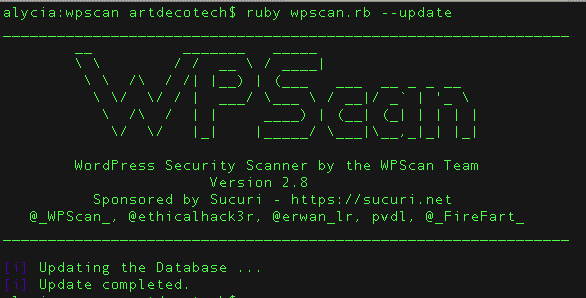
ruby wpscan.rb --update
You will see the WPScan logo and a note that the the database update has completed successfully.
Scanning for Vulnerabilities
Next we are going to point the WPScan application at your WordPress website. With a few commands we can check your website for vulnerable themes, plugins, and users. This will let you know if your website has a high risk of becoming infected. From there you can take steps to secure your site by updating or disabling the security problems.
WPScan commands will always start with ruby wpscan.rb followed by your website URL.
ruby wpscan.rb --url http://yourwebsite.com
Running the basic command above will perform a quick scan of the website to identify your active theme and basic issues, such as exposed WordPress version numbers. You can also look for specific vulnerabilities by adding arguments to the end of this basic command.
Checking for Vulnerable Plugins
Adding the –enumerate vp argument checks the WordPress website for vulnerable plugins.
ruby wpscan.rb --url http://yourwebsite.com --enumerate vp
If vulnerable plugins are found you will see red exclamation icons and references to further information. Any vulnerable plugin should be replaced and removed if you cannot update it to patch the vulnerability.
Checking for Vulnerable Themes
Similarly, adding –enumerate vt to the command checks the WordPress website for vulnerable themes.
ruby wpscan.rb --url http://yourwebsite.com --enumerate vt
As with plugins, look for red exclamation icons and URLs with more information. Any vulnerable theme should be replaced and removed if you cannot update it to patch the vulnerability.
Checking User Enumeration
When hackers know your WordPress usernames it becomes easier for them to perform a successful brute force attack. If attackers gain access to one of your users with sufficient permissions, they can gain control of your WordPress installation.
To find out the login names of users on your WordPress website, we will use the argument –enumerate u at the end of the command.
ruby wpscan.rb --url http://yourwebsite.com --enumerate u
Ideally you should not be able to list the login names of your WordPress users.
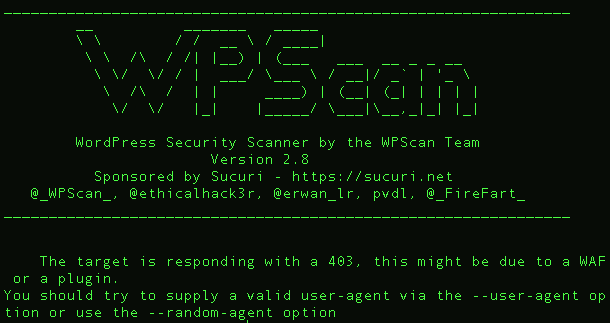
If you have a Website Firewall or a plugin that stops WPScan, you may see an error like this:
It is always best to use a different nickname than the one used to login and some .htaccess solutions also exist for preventing user enumeration.
Password Guessing
Now we are going to try a number of passwords. If you have a list of passwords, WPScan can use the list to try logging in to each user account that it finds. This way you can see if any of your users are practicing poor password habits.
You can create or gather a wordlist, which is just a text file with passwords on each line. Hackers have huge collections of passwords but you can make a simple text document containing a decent number of top passwords. The file just needs to be placed in your wpscan directory so that the WPScan application can easily use it.
When you have the wordlist file in the WPScan directory, you can add the –wordlist argument along with the name of the wordlist file. You can also specify the number of threads to use at the same time to process the list. Depending on the length of the wordlist, it could take a lot of time or computer resources to complete.
ruby wpscan.rb --url http://yourwebsite.com --wordlist passwords.txt threads 50
Video Tutorial
We have prepared a little video tutorial so you can see how it looks when these commands are run.
It is important to take the opportunity to check your own website for security issues. Are there other WPScan commands you want to see covered in a future tutorial? Let us know what you think in the comments!
New Release:
Want to learn more about vulnerabilities and how to keep your website secure and protected? You can see that and more in our new WordPress Security Guide Today!


 Ben Martin
 Art Martori
 Luke Leal

 Juliana Lewis

 Sucuri Malware Research Team
 Gerson Ruiz

21 comments
For your average WP user installing this is beyond them – and they are the ones that need it most.
Needs an installer for wider use.
There is definitely room to improve access to free vulnerability scanning in general. In case you missed it, install instructions and video tutorial here: https://blog.sucuri.net/2015/10/install-wpscan-wordpress-vulnerability-scan.html – not as nice as a GUI but hopefully helpful to some. 🙂
Very cool, thank you!
Does the Sucuri scanner do this already? Is this something to use in addition to the Sucuri plugin?
HI
No, our monitors and scanners do not do what WPscan does. They’re apples and oranges when trying to compare, impossible.
WPSCAN is a great tool to add to your toolbox to assist you in identifying potential weaknesses, and areas in which you can improve or that can be used against you. Our products / services, including the plugin, passively scan and aggressively protect your website.
In short, with our products, all the things WP Scan identifies as a potential issue would already be patched.. 😉
Merry Christmas
Try WordPress scanner works well on rooted Droid.
All OK until the database update.
Maccy:wpscan nick$ ruby wpscan.rb –update
[ERROR] Could not open library ‘c’: dlopen(c, 5): image not found.
Could not open library ‘libc.dylib’: dlopen(libc.dylib, 5): image not found
Any ideas?
Nick
El Capitain? Might have to rebuild Ruby: https://github.com/wpscanteam/wpscan/issues/877
Spent all morning trying to get this to work, will not allow the database to be installed/ updated. Timing out, I found forums on changing the timeout configs, but no good. Bummer, looks great.
Hmm might be a long shot but do you have an extra firewall or active protection that might be interfering?
it’s working today, thanks!
thanks for the guide, would be nice to have a follow up article for doing the opposite and showing how you can block wpscans in apache and/or nginx and limit them to just specific ip whitelists etc 🙂
oops….
MacJet:wpscan Sjuul$ ruby wpscan.rb –update
Ruby >= 2.1.8 required to run wpscan (You have 2.0.0)
How to Update Ruby?? Mac Yosemite 10.10.4
Ruby >= 2.1.8 required to run wpscan (You have 2.0.0)
How can i fix this?
Can you not read? You need to upgrade Ruby.
Wpscan work only on Ubuntu 16.04. I have not tried other versions of Linux distributions.
Can WPscan check core WP files for any vulnerabilities ?
But sometimes i get “Enumerating Usernames” and then “We did not enumerate any usernames”. It does not enumerate any usernames. Why is that happening and how do i solve this prob?
you cant solve this omg think it
this was an amazing and advanced article ! WOw! I am seriously impressed by the knowledge and the ideas you have. I knew before about the WpScan but the way you explain it makes it interesting to know more about security and pentesting 🙂
Thank you for sharing this & I Hope to see more amazing articles from you in the near future.
Regards,
Sami
Pretty cool and straight forward, great tool
Comments are closed.