

Website security begins on the server, not with a plugin. Every page and configuration file is stored on disk, and the operating system controls who can read, change, or run them. These controls are called file and folder permissions. You can think of them as digital locks on your website’s doors. If you set them correctly, only the right people or processes have access. If you set them too loosely, the wrong user or process could get in, change your code, or expose private data. In this post, we’ll help you understand, check, and fix permissions so they’re no longer confusing.
What are file permissions and why do they matter?
File permissions are rules set by the operating system that decide who can access a file or folder and what they can do with it. On most Linux-based hosting, permissions control whether the web server can read your site files, whether your CMS can upload files or store cache, and whether scripts can run. These rules help keep users and services separate on the server.
They matter because mistakes can lead to real security problems. If a critical folder can be written to by anyone, an attacker who finds a plugin bug or steals a login could do more damage by adding malicious files, injecting code, or changing templates. If a sensitive file is readable by the wrong people, secrets like database passwords, API keys, and environment variables could leak. This can turn a small problem into a complete takeover. Good permissions are not a replacement for patching and monitoring, but they greatly limit what an intruder can do.
The mechanics of who can do what
Permissions are built from two simple parts: who the rule applies to and what that user can do.
User categories
Most Unix-like systems group access into three buckets:
- Owner: The account that owns the file; often your hosting user, a deployment user, or a service account created by your platform.
- Group: A set of users who share access. On shared servers, your web server process may belong to a particular group, or your account might share a group with deployment tools.
- Others: Everyone else. This doesn’t mean “the internet can directly open your files,” but it does mean any local user or process not covered by Owner or Group gets whatever access “Others” grants.
Permission actions
Each category can get one or more of these actions:
- Read (R): Permission to view contents. For a website, this allows the server to read PHP, HTML, CSS, and JS files so it can serve pages. For a directory, “read” usually means listing filenames.
- Write (W): Permission to change contents (edit, create, delete). On websites, write access is what lets WordPress save media uploads, your app write cache files, or your build process update assets. On directories, write controls creating or removing files inside.
- Execute (X): This permission lets you run a file or enter a directory. Many people find this confusing. A directory needs the execute permission so the server can access files inside it, even if it can’t list the directory. For scripts, execute is needed for CGI-style scripts or binaries. Most PHP files are run by the interpreter and usually don’t need the execute permission.
Once you understand these basics, the numbers you see in hosting panels will make sense as rules, not just random codes.
Decoding permission numbers
Permissions are usually shown in two ways: with letters (symbolic) or numbers (octal). If you have used ls -l, you have seen symbolic permissions like -rw-r--r-- or drwxr-xr-x. The first character tells you if it is a file (-) or a directory (d). After that, permissions are grouped into three sets: Owner, Group, and Others, with three characters each.
Octal codes are the same information, compressed into three digits. Each digit is a sum of:
- Read = 4
- Write = 2
- Execute = 1
Here’s the cheat sheet for a single chunk:
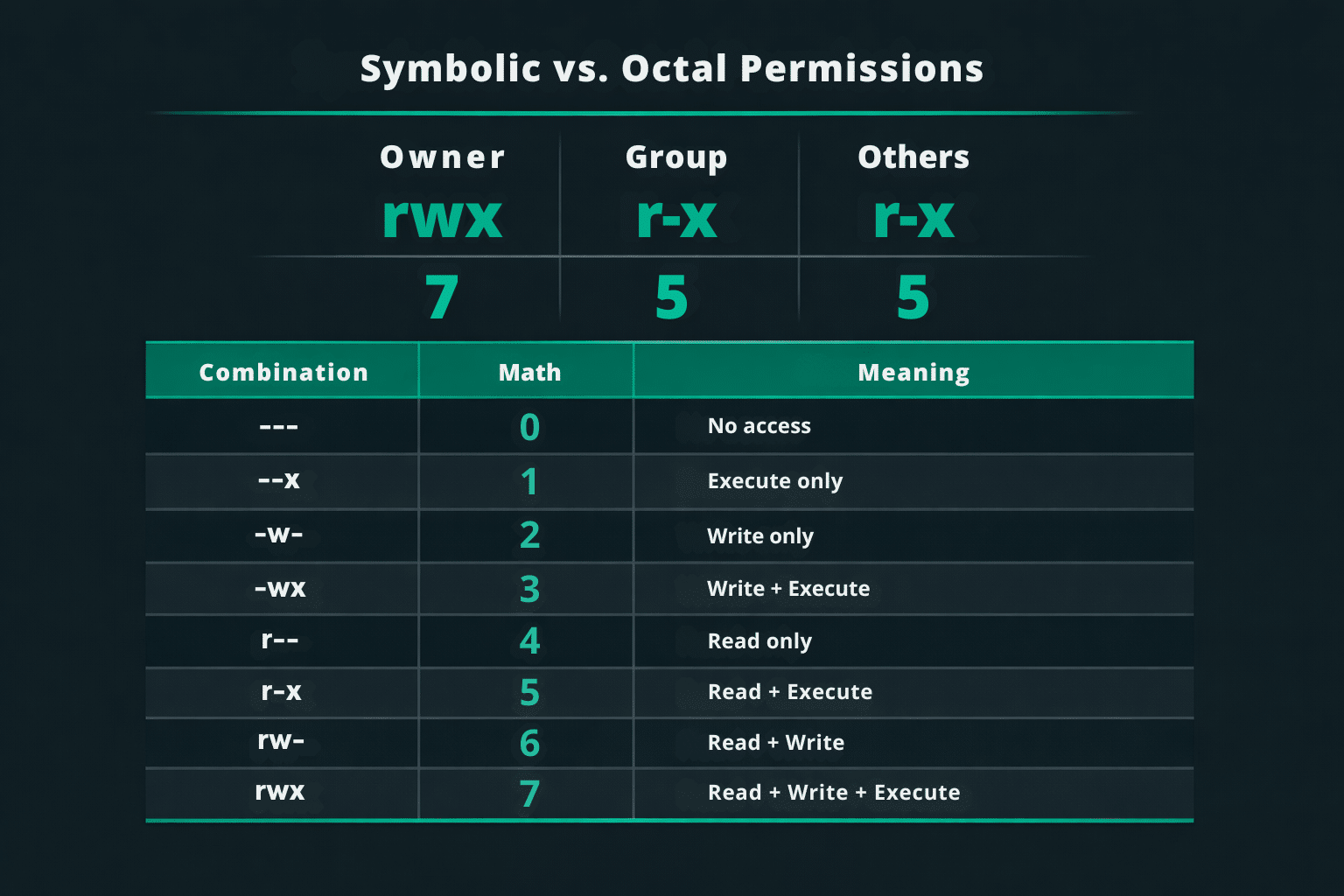
To calculate a full mode, do the math once per chunk and write the three digits in order (Owner, Group, Others). For example: 640 means Owner = 6 (rw-), Group = 4 (r--), Others = 0 (---). Likewise, 644 maps to rw-r--r--, and 755 maps to rwxr-xr-x (a common directory setting because Group/Others need execute to traverse).
Sometimes, you might see a fourth number at the start (like 1755). This is for special settings such as setuid, setgid, or the sticky bit. On web servers, the sticky bit is common on shared temporary folders like /tmp (shown as 1777). It helps stop users from deleting each other’s files. This is useful, but it should not be used to fix unsafe web-root permissions.
How to change file permissions (chmod and chown)
On Linux servers, you’ll typically use chmod to change permissions and chown to change ownership (user/group).
If you prefer a GUI, a control panel like cPanel lets you right‑click a file or folder and adjust permissions using checkboxes, usually showing the numeric code as you go. With an FTP client such as FileZilla, you can also right‑click > “File permissions…” and enter 644 or 755.
With SSH, check what you currently have:
ls -laThen apply targeted fixes:
chmod 644 wp-config.php
chmod 755 public_html
Need to reset a whole tree after a messy migration? Instead of one risky “chmod everything,” set directories and files separately:
find public_html -type d -exec chmod 755 {} \;
find public_html -type f -exec chmod 644 {} \;
If ownership is wrong (a common cause of upload or update failures), and your account has the required privileges, you can correct it with:
chown -R youruser:yourgroup public_htmlIf you are not allowed to use chown, contact your hosting provider. Do not make permissions more open to try to fix the problem.
Website security best practices
Permissions are most effective when you follow the principle of least privilege. Give each part of your website only the access it needs, and nothing extra. This limits both mistakes and attacks.
For many websites, a safe starting point is 644 for files and 755 for directories. This allows your account to edit files, while letting the web server read what it must and traverse folders to serve content. Some hosting stacks can tighten further; others need specific group settings for upload or cache paths, which is why you sometimes see 775 on those folders.
The one setting that almost always signals trouble is 777. It grants everyone full read/write/execute, which effectively turns a directory into a public drop zone for any local process. If an attacker gains the ability to write even a single file, world-writable paths make it far easier to plant web shells, overwrite legitimate code, or inject spam links that quietly bleed traffic and trust. If a guide recommends 777 to “fix” a permissions error, it’s usually masking an ownership problem.
Sensitive files deserve stricter rules. WordPress sites can often harden wp-config.php to 400 or 440, depending on how PHP runs (WordPress has guidance in its hardening documentation). Application .env files, private keys, and backup archives should be not world-readable, ideally 600 (or stricter) and stored outside the web root when possible.
A good rule is to allow write access only in the few directories that really need it, such as uploads and cache. If most of your web root is read-only, a compromised plugin has fewer places to cause harm. Permissions can change after installs, emergency edits, and migrations, so make audits a regular part of your maintenance, not just a one-time task. Running a quick find for world-writable paths can help you catch mistakes early.
File permissions FAQ
Why am I getting a 403 Forbidden error?
It’s often permissions that are too restrictive. A directory in the path may lack execute (x), or a file isn’t readable by the server. Check the full directory chain, not just the file.
Can file permissions affect website SEO?
Yes, indirectly. If permissions trigger 403/404 responses, block CSS/JS/images, or break caching, crawlers may index less and users may bounce faster, which can hurt performance.
How often should I audit my file permissions?
After migrations, major updates, and any security incident. For most sites, quarterly is a solid cadence; high-risk sites benefit from continuous monitoring.
Should I ever use 777 to fix an error?
Almost never. It’s safer to fix ownership or the application’s write paths than to make a directory world-writable.
Can I set permissions once and forget them?
Not really. Updates, restores, and new plugins can change permissions unexpectedly.
Turning knowledge into action
Setting correct permissions is one of the easiest ways to reduce your website’s risk, and the benefits are immediate: fewer places for attackers to write files, fewer leaked secrets, and fewer quick fixes that become security problems. If you want help checking your site, you can use a free scan like Sucuri SiteCheck. If you want to block malicious traffic before it reaches your server, adding a website firewall and monitoring can give you extra protection on top of good server practices.



 Art Martori
 Antony Garand
 Allison Bondi
 Victor Santoyo
 Douglas Santos
 Denis Sinegubko
 Luke Leal
 Krasimir Konov
 Cesar Anjos
 Rodrigo Escobar
1 comment
I try to not have root own any web files. No. Another user under the apache group will own the file, and permissions are set so that the file is executed or read or whatever by that user/group. I’m not sure if this helps, but I figure if apache cannot run the files without root, I gotta fix the way the files run, and it’s not a safe thing to have root run things if it can be avoided.
Comments are closed.