

In this post we’ll be focusing on a part of your digital life that quietly influences everything else: the computer you use to log into accounts, manage websites, edit files, and store personal data.
Even if you’re diligent about passwords and browser security, a compromised laptop can undo good habits quickly. Malware doesn’t have to “hack the website” directly to cause damage. If it can steal saved credentials, tamper with files before you upload them, or hijack your clipboard while you copy API keys, it can still create a mess, especially for site owners using SSH/SFTP tools, Git clients, file sync apps, and password managers.
While security and privacy overlap, they aren’t identical. Some platforms and services make different tradeoffs. This guide focuses on reducing the chance your computer gets compromised and limiting the damage if it does.
Start from a clean baseline
If the computer isn’t brand new, or if you’ve inherited it from years of installs, random utilities, and mystery browser extensions, starting fresh is one of the most reliable security moves. A clean install removes hidden persistence mechanisms, clears out old software you forgot about, and resets configuration drift that accumulates over time.
Before you wipe anything, make sure you can restore what matters:
- Export anything irreplaceable (photos, documents, code, etc.).
- Confirm you know your Apple ID / Microsoft account credentials (and have recovery methods).
- If you use full disk encryption, locate and store recovery keys safely.
macOS
On modern macOS systems, the simplest path is usually built-in erase/reinstall tooling rather than manual “DIY” workflows.
- If your Mac offers Erase All Content and Settings, use it. It’s the cleanest way to reset while keeping the operating system trustworthy.
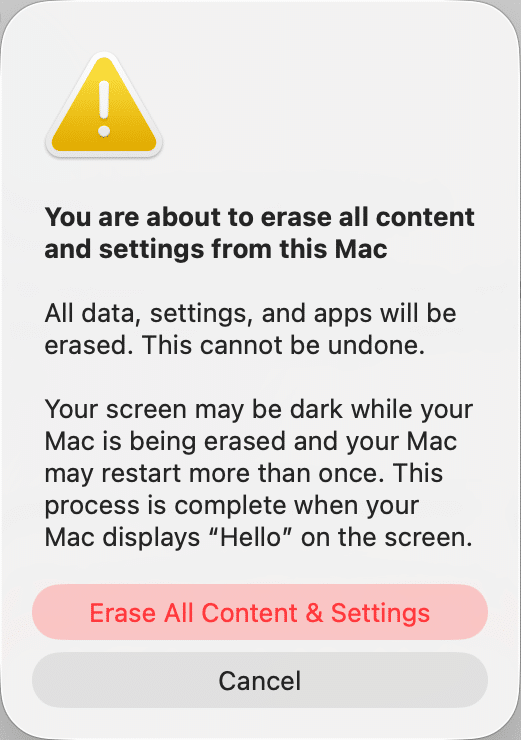
- Otherwise, boot into macOS Recovery, use Disk Utility to erase the system volume, then reinstall macOS from Recovery.

Apple’s official guidance is the best reference for exact steps on your hardware, since Apple Silicon and Intel Macs differ slightly.
One small but important detail is that if your Mac uses an SSD (most do), the default format is typically APFS. You’ll see other format options in Disk Utility, but you usually don’t need to overthink this, the recovery process tends to guide you to the right outcome.
Windows
Windows has improved a lot here. For most people, Reset this PC is the best first choice:
- Open Settings → System → Recovery → Reset this PC
- Choose whether you want to keep files (faster, but less “clean”) or remove everything (more thorough)
- Prefer Cloud download if you suspect your local system files might be damaged
Microsoft’s overview is here: Reset or reinstall Windows.
If you want the most “surgical” clean install, use Microsoft’s official media tools and reinstall from USB (especially helpful if you’re repurposing a machine or handing it off).
Reinstall apps like you mean it
A fresh OS only stays fresh if you avoid reinstalling questionable add-ons.
- On macOS, stick to the App Store where possible and reputable vendors for the rest. If you’re comfortable with it, Homebrew is a popular option for managing developer tools and keeping them updated.
- On Windows, the Microsoft Store and Windows Package Manager (winget) can reduce the risk of downloading random installers from random sites.
Lock down the basics: login, lock screen, and accounts
Use a strong sign-in and stop treating password changes as routine chores
A strong password still matters, but the “change it every six months” rule has aged poorly. Frequent forced changes often lead to predictable patterns, reused variations, and sticky notes.
Instead:
- Use a long passphrase (length beats complexity most days).
- Make it unique (no reusing your email password).
- Prefer a password manager so you’re not relying on memory for everything.
While there are many solid options for password managers, the “best” one is the one you’ll actually use consistently.
And if your device supports it, turn on modern sign-in convenience that doesn’t weaken security:
- Touch ID on Macs
- Windows Hello (PIN tied to the device + biometrics) on Windows
Convenience matters because it reduces the temptation to disable locks.
Set short auto-lock and require authentication immediately
Aim for a lock screen to activate quickly when you step away. Two minutes is a decent default for many people. Choose what fits your environment, but avoid “never” and “one hour.”
On macOS:
- Open your System Settings and select Lock Screen.
- Set display sleep / screen saver behavior.
- Require password immediately (or within a very short window).
On Windows:
- Open Settings > Accounts and refer to Sign-in options for Windows Hello/PIN behavior.
- Open Settings → Personalization → Lock screen → Screen saver (if you use it).
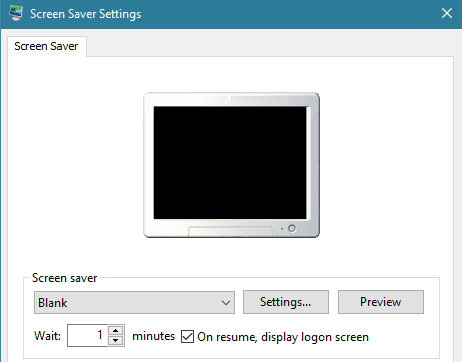
Windows lock screen settings - Consider Dynamic Lock if you use a paired phone and want the machine to lock when you walk away.
Use a standard account for daily work
This one is simple and still widely ignored: don’t run day-to-day as an administrator.
- Use a standard user for browsing, email, and everyday work.
- Keep a separate admin account for installs and system changes.
This reduces how far malware can get if it lands.
If other people need access, avoid sharing your account. A separate user profile or guest access, if you need it, prevents password managers, browsing sessions, and cloud tokens from bleeding across users.
Updates: The habit that prevents exciting problems
If you do only one thing from this guide, make sure it’s turning on automatic updates and stopping the bad habit of postponing restarts.
Update the operating system
- On macOS: System Settings → General → Software Update
- On Windows: Settings → Windows Update
Turn on automatic updates if available, and allow security responses to install quickly. Many successful attacks aren’t sophisticated; they’re simply fast.
Browsers, password managers, VPN clients, and cloud sync tools are high-value targets. Keep them current, and uninstall anything you no longer use. Every extra application is another potential vulnerability.
If a program is no longer maintained, treat it like expired food. It doesn’t matter how useful it used to be.
Remove what you don’t need
Most infections don’t arrive through “advanced hacking.” They arrive through:
- Shady installers
- Fake update prompts
- Browser extensions that shouldn’t exist
- Documents that shouldn’t have been opened
Uninstall aggressively.
On macOS:
- Remove apps from the Applications folder you no longer use
- Then review Login Items in System Settings so old helpers aren’t running invisibly
On Windows:
- Settings → Apps → Installed apps
- Uninstall anything you don’t recognize, don’t use, or don’t trust
A few specific notes that are worth calling out:
Java is fine when you need it… and unnecessary when you don’t. Many people don’t need it at all. If you do need it for a specific tool, keep it updated and avoid leaving a stale runtime installed “just in case.”
PDFs and Office documents are still popular attack vehicles. The goal isn’t to fear them; it’s to handle them carefully:
- Prefer opening PDFs in your browser’s built-in viewer unless you need advanced features
- Keep your PDF reader updated if you use one (Adobe Acrobat, Preview, etc.)
- For Office files, be extremely cautious with macros and disable them unless you truly understand why a file needs them
If you want an additional safety buffer for unknown documents, open them inside a sandboxed environment (more on that later).
Built-in security you should actually turn on
macOS
macOS includes several layers that do a lot of quiet work: app signing checks, malware signature updates, quarantine flags on downloaded files, and more. These protections are strongest when you don’t “opt out” of them.
- Make sure you:
- Keep Gatekeeper behavior intact (avoid bypassing it habitually).
- Leave System Integrity Protection (SIP) enabled unless you have a very specific reason not to.
- Review Privacy & Security permissions and remove access you no longer want apps to have.
- Turn on the built-in firewall:
- System Settings → Network → Firewall (exact path can vary slightly by version).
- And enable full disk encryption:
Windows
Modern Windows security is dramatically better than it used to be, but it only helps if it’s enabled.
- At minimum:
- Make sure Microsoft Defender is on and healthy.
- Keep SmartScreen enabled (it blocks a lot of common malware delivery attempts).
- Turn on the Windows Firewall (and don’t disable it because a random app asked nicely).
- If your device supports it, check for:
- Secure Boot
- TPM
- Core Isolation / Memory Integrity (where compatible)
- And encrypt the disk:
If you use BitLocker, store recovery keys safely. Don’t leave them only on the device you want to recover.
Backups are your real ransomware plan
A backup isn’t a backup unless you can restore from it. And a backup that’s always connected can be encrypted right alongside your main drive by ransomware.
A practical approach is the “3-2-1 idea”:
- Keep three copies of important data
- On two different types of storage
- With one copy offline or otherwise protected from automated destruction
macOS
Time Machine is still the easiest solid option. Encrypt the backup disk and set a schedule. If you keep sensitive material, consider storing it in an encrypted container before it touches external drives or cloud sync tools.
Windows
Windows has multiple backup paths depending on edition and preference:
- Built-in backup features for folders and settings
- File History-style approaches for documents
- Third-party tools if you want more control
Whatever you use, the same rules apply: encrypt backups, protect at least one copy from being constantly mounted, and test a restore before you trust it.
Cloud backups (useful, but choose carefully)
Cloud backup can save you if you lose your laptop and your local backup at the same time. Read the fine print, understand whether the provider can access your files, and make sure you’re using strong account security like MFA, recovery codes, and ideally passkeys.
Malware defense
Antivirus and on-demand scanners
On Windows, real-time protection is non-negotiable. Microsoft Defender is a strong baseline for many people, and you can supplement it with periodic second-opinion scans.
On macOS, infections are less common than Windows, but less common is not the same as impossible. If you install a lot of software, handle many downloads, or work in a higher-risk environment, an on-demand scanner is reasonable.
A widely used option across platforms is Malwarebytes. There are other reputable vendors as well; the key is to choose one you trust and keep it updated.
Firewalls and outbound monitoring
The built-in firewalls in macOS and Windows are good at blocking inbound connections. Many people miss that outbound control can be just as valuable. If something malicious runs, it often needs to call home.
- On macOS, tools like Little Snitch are popular for outbound connection prompts and monitoring.
- On Windows, the built-in firewall has advanced capabilities too, though the interface isn’t as friendly. Most users don’t need a third-party firewall if Defender and the Windows Firewall are configured sensibly.
A quick caution: outbound firewalls can be noisy at first. If you click Allow on everything automatically, you may not get much value. Used thoughtfully, they can reveal surprises fast.
Secure DNS
A lot of “bad” connections begin with DNS; your computer asking, “Where is this site?” Using a security-focused DNS resolver can reduce exposure to known malicious domains.
Options people commonly use include Quad9 and Cloudflare’s 1.1.1.1. This isn’t magic armor, but it’s a nice seatbelt layer.
Encryption and physical security (plan for the stolen laptop scenario)
Encryption turns a stolen device into an inconvenience instead of a catastrophe.
- macOS: FileVault (full disk)
- Windows: BitLocker or device encryption (where supported)
Equally important:
- Use a strong device passcode/passphrase
- Don’t leave the machine logged in and unattended
- Disable showing sensitive notifications on the lock screen if you work around others
Also enable device location features if you’re comfortable with them:
- macOS: Find My Mac
- Windows: Find and lock a lost Windows device
And yes, covering your webcam is still a reasonable, low-effort precaution. A simple physical shutter can beat a lot of fancy software promises.
Optional hardening that pays off
If you manage websites, handle client credentials, or often open files from unknown sources, a little extra isolation goes a long way.
Use a separate “risky” environment
Consider a dedicated browser profile (or even a separate user account) for:
- Logging into admin panels,
- Touching production credentials,
- Accessing banking and email.
Keep that environment boring. No random extensions, no experimental plugins, no installing just one more thing.
Sandboxing and virtual machines
If you routinely deal with unknown downloads, suspicious documents, or testing tools, isolate them.
- Windows has Windows Sandbox on supported editions: Windows Sandbox
- Cross-platform virtualization tools like VirtualBox can also help, though hardware compatibility and performance vary depending on your system.
The idea isn’t to live inside a VM for everything. It’s to have a safe quarantine room when you need one.
VPNs
A VPN can help in certain situations: public Wi-Fi, travel, and reducing exposure of your IP address to sites you visit. It doesn’t make you invisible and doesn’t replace good endpoint security, but it can be a sensible tool.
If you choose one, go with a reputable provider and avoid free VPNs that have unclear business models.
Conclusion
Computer security isn’t a single setting you flip; it’s a short list of habits you repeat until they’re automatic. If you want a practical do-this-today sequence, start here:
- Turn on automatic OS updates and restart when prompted.
- Enable full disk encryption.
- Set a short auto-lock and require authentication immediately.
- Remove unused apps and browser extensions.
- Make sure you have at least one backup that you can actually restore from.
- Use a password manager and strengthen your most important accounts.
None of this requires paranoia. It simply reduces the number of easy wins available to attackers. It doesn’t require extreme measures or constant vigilance. Just a few well-chosen habits that go a long way toward reducing risk.
Security is an ongoing practice that benefits from occasional review as your tools and workflows change. Taking the time to get the fundamentals right puts you in a much stronger position when problems inevitably arise.



 Cesar Anjos
 Kyle Knight
 Sucuri
 Marc Kranat
 Victor Santoyo
 Rianna MacLeod
 Luke Leal
 Stephen Johnston
 Ashley Sand
 Samuel Odendaal
3 comments
Good overview! A neat little program I use on MacOS is AppCleaner, it removes the various system files associated with programs that typically don’t get removed during normal uninstall (1.ii.)
Thanks a lot Caleb !
Your article has been of great help to my computer security.
If they do not use the computer for very special things like games it would also be highly recommended that they install Linux (Ubuntu, Debian, Fedora….) that is free and more secure than Windows
Comments are closed.